Blog
Why Is My New Gaming PC Lagging? 2026 Troubleshooting Guide

You just invested your hard-earned AED into a powerful new rig, but instead of victory, you’re staring at a stuttering screen. It’s a gut-wrenching feeling when high-end hardware fails to deliver the frames you were promised. You aren’t alone in this frustration. Many gamers in the Emirates struggle with performance drops, often wondering if they’ve received a faulty unit or if the intense local heat is simply too much for their cooling. The good news is that most performance issues stem from configuration bottlenecks rather than broken parts.
I’m going to help you transform your machine into a genuine lag free gaming pc build uae by using a professional diagnostic framework. We’ll verify everything from your NVIDIA GeForce 610.62 drivers to the latest Windows 11 26H2 updates. You’ll learn to distinguish between a congested network and thermal throttling, giving you total confidence that your hardware is working exactly as intended. This guide previews the specific steps to eliminate frame drops and get you back into the match with silky smooth performance.
Key Takeaways
- Identify if your stuttering is caused by low FPS, high network ping, or input delay using real-time on-screen diagnostics.
- Optimize your software environment for a lag free gaming pc build uae by performing clean GPU driver installs and adjusting Windows Power Plans.
- Protect your hardware from the UAE’s high ambient temperatures by recognizing the signs of thermal throttling and improving system airflow.
- Boost your frame rates instantly by balancing intensive settings like Ray Tracing with modern upscaling technologies like DLSS or FSR.
- Learn to distinguish between simple configuration bottlenecks and actual hardware defects that might require professional-grade stress testing.
Is it Your Hardware, Software, or Connection? Identifying the Lag
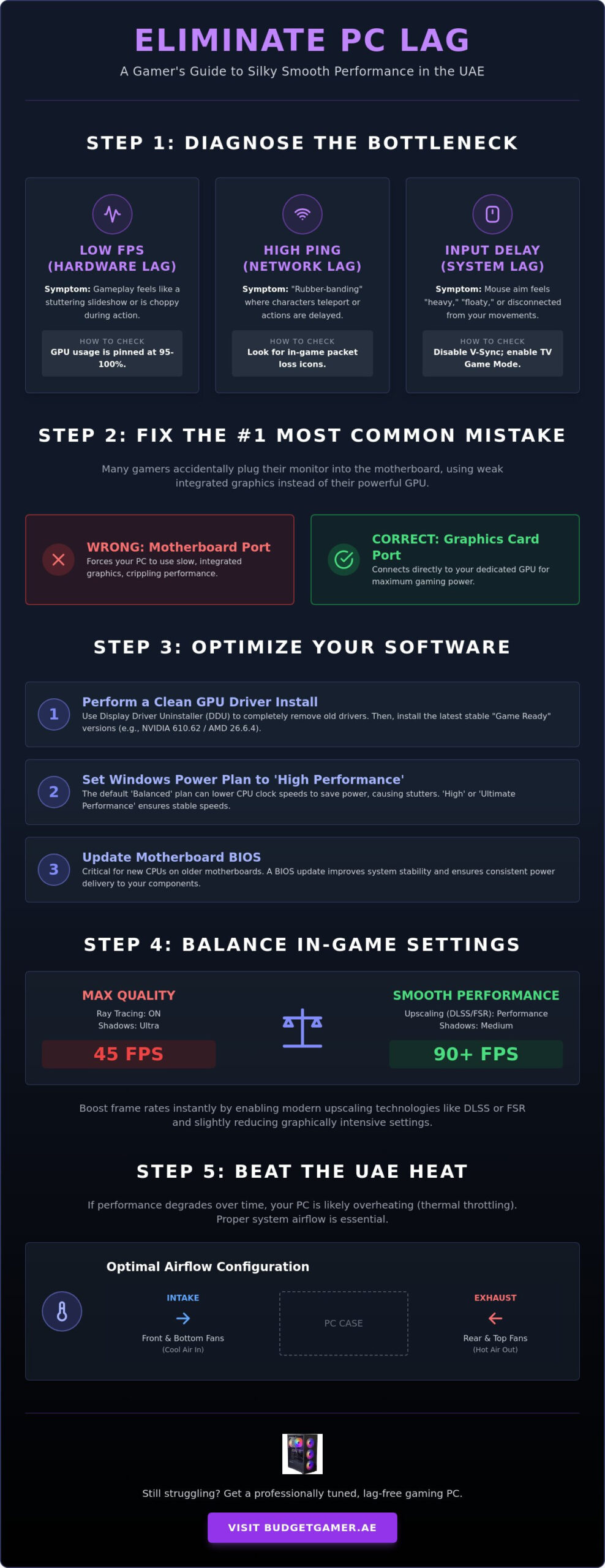
Stop guessing why your screen is freezing. To maintain a lag free gaming pc build uae, you have to diagnose the specific bottleneck first. Lag isn’t just one thing. It’s usually a mix of three distinct issues: FPS drops, network latency, and input delay. Each one requires a different fix, so identifying the culprit is your first step toward victory.
FPS drops look like a slideshow. Your GPU can’t keep up with the game’s demands. Network latency, or ping, causes “rubber-banding” where players teleport around the map. Input delay makes your mouse feel heavy, like you’re aiming through honey. To see what’s actually happening, install an on-screen overlay like RivaTuner. This tool displays real-time stats for frame rates and frame times. Stuttering is a variance in frame delivery times rather than just low average FPS. If your frame time graph looks like a jagged mountain range, you’ve found your problem.
Before you dive into complex settings, do a physical check. It sounds simple, but many gamers in the UAE accidentally plug their monitor cable into the motherboard instead of the dedicated GPU port. This mistake forces your system to use weak integrated graphics, making even a high-end rig feel like an office laptop. Ensure your HDMI or DisplayPort cable is firmly connected to the horizontal slots on your graphics card.
Hardware Lag vs. Network Lag
Look for warning icons in the corner of your screen. Most modern competitive games show a yellow or red symbol for packet loss or high latency. If you see these, your hardware isn’t the problem; your router or ISP is the bottleneck. A deep dive into understanding system latency reveals that hardware delays and network delays are two different beasts that require separate solutions.
Check your component utilization. If your GPU is pinned at 100% while your CPU sits at 20%, you’ve found a hardware bottleneck. This is common when choosing a pre-built PC in the UAE that might have an unbalanced component pairing. A well-balanced system ensures no single part is holding the others back during intense firefights.
The Ghost in the Machine: Input Delay
Input delay is the time between clicking your mouse and seeing the muzzle flash. Peripheral polling rates matter here. A mouse with a 1,000Hz polling rate communicates with your PC every millisecond, reducing the “floaty” feeling. Software settings often cause the most trouble. V-Sync is a major culprit. It eliminates visual tearing but adds massive delay by holding back frames. If you’re gaming on a 4K TV in your home, check your display settings immediately. Most TVs have a “Game Mode” that bypasses heavy post-processing to slash input lag and keep your reactions sharp.
Software Culprits: Drivers and Windows Optimization
Your hardware is only as good as the software controlling it. Even a top-tier lag free gaming pc build uae can feel sluggish if the operating system is fighting for resources. Most gamers simply hit the update button and hope for the best, but a professional-grade setup requires a more surgical approach. If you’ve recently upgraded your GPU, old driver fragments can linger in your registry, causing micro-stutters and random crashes during intense matches.
Follow the “Clean Install” rule. Use Display Driver Uninstaller (DDU) to completely wipe existing graphics software before installing new versions. This tool removes hidden files that standard uninstallers miss. Once your system is clean, install the latest stable releases. As of June 2026, NVIDIA users should look for GeForce Game Ready Driver 610.62, while AMD enthusiasts need Radeon Software Adrenalin Edition 26.6.4. Beyond drivers, ensure your motherboard is ready for action. BIOS updates can significantly improve stability for newer CPUs on older motherboard chipsets, ensuring your power delivery is consistent. This step is vital for identifying hardware bottlenecks that might be caused by outdated firmware.
Windows Power Plans are another silent performance killer. By default, Windows uses a “Balanced” plan that aggressively downclocks your CPU to save energy. While great for laptops, it’s a disaster for gaming. Switch to the “High Performance” or “Ultimate Performance” plan. This keeps your clock speeds stable, preventing the sudden dips that cause frame time spikes. If your current software environment feels too cluttered to fix, you might find it easier to start fresh with a professionally tuned gaming PC designed for maximum efficiency.
GPU Driver Optimization
Always choose Game Ready drivers over Studio drivers if your primary goal is performance. Game Ready versions are specifically optimized for the latest titles and include day-one patches for major releases. Avoid beta drivers unless you are troubleshooting a specific issue with a brand-new game. Beta software often lacks the rigorous testing needed for long-term stability. For NVIDIA cards, use the GeForce Experience app to manage settings, but consider a manual install if you want to keep your system lean and free of extra background telemetry.
Windows 11 Gaming Features
Windows 11 26H2 includes powerful tools to boost your FPS. Enable “Game Mode” in your system settings. This feature tells Windows to prioritize your game’s process and pause background updates or notifications. You should also toggle on Hardware-Accelerated GPU Scheduling (HAGS). This allows your graphics card to manage its own video memory, which reduces latency and improves frame rates on modern RTX and Radeon cards. Finally, open your Task Manager and audit your “Startup Apps.” Disable anything that isn’t essential. Every app that starts with Windows consumes precious RAM and CPU cycles that should be going toward your gameplay.
Beating the Heat: Thermal Throttling in the UAE Climate
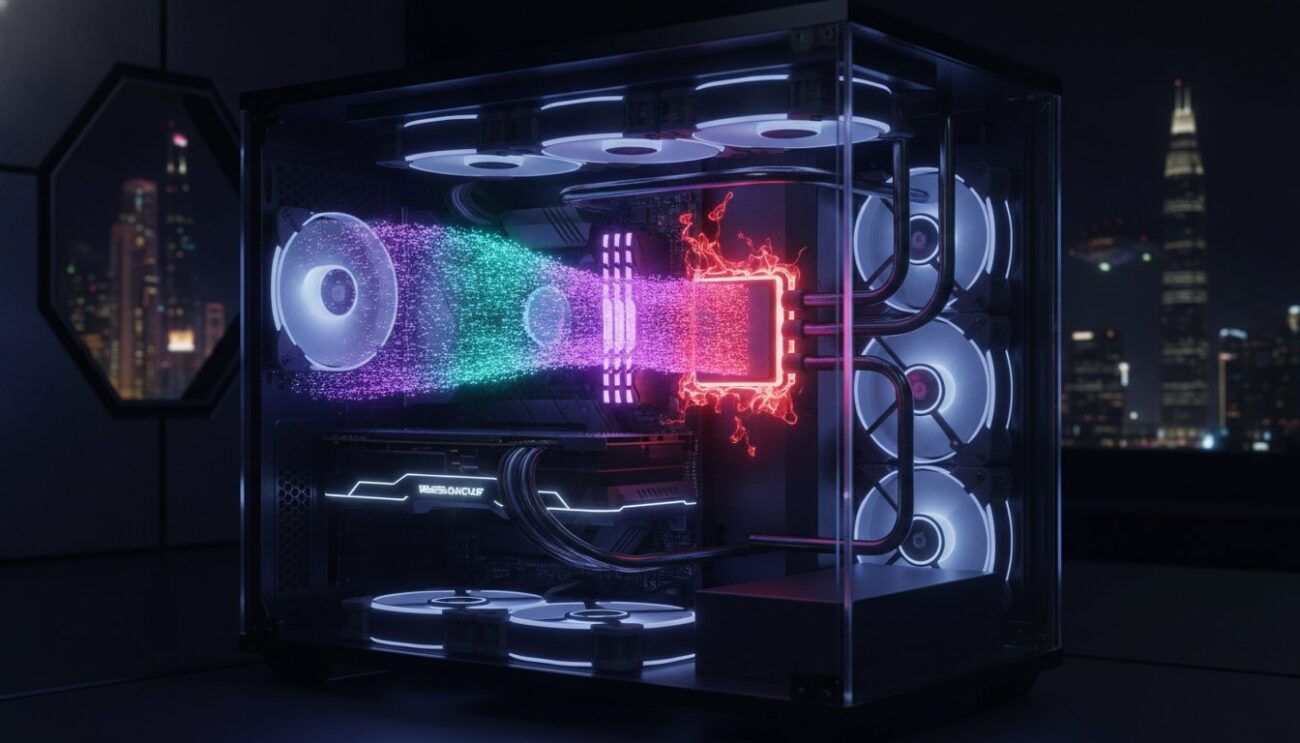
High ambient temperatures are the silent enemy of performance. In the UAE, summer heat can push even the best air-conditioned rooms to higher-than-average temperatures. When your components get too hot, they engage a safety feature called thermal throttling. This is your PC’s emergency brake. To prevent permanent damage, your CPU and GPU automatically lower their clock speeds to reduce heat. This sudden drop in speed causes the massive FPS dips and stuttering that ruin your matches. Maintaining a lag free gaming pc build uae requires a proactive approach to heat management that goes beyond standard factory settings.
You can’t fix what you can’t see. Use monitoring tools like HWMonitor or MSI Afterburner to track your vitals in real-time. If you see your CPU hitting 90°C or your GPU climbing past 85°C, you’re likely entering the throttle zone. While heat is a primary cause of FPS drops, identifying the source requires a systematic approach similar to troubleshooting input lag or network issues. For those running high-performance hardware, The Beast Gaming System is specifically engineered with high-airflow mesh panels and multi-fan configurations to ensure maximum heat dissipation even during the hottest months in Dubai or Abu Dhabi.
Optimal Airflow Patterns
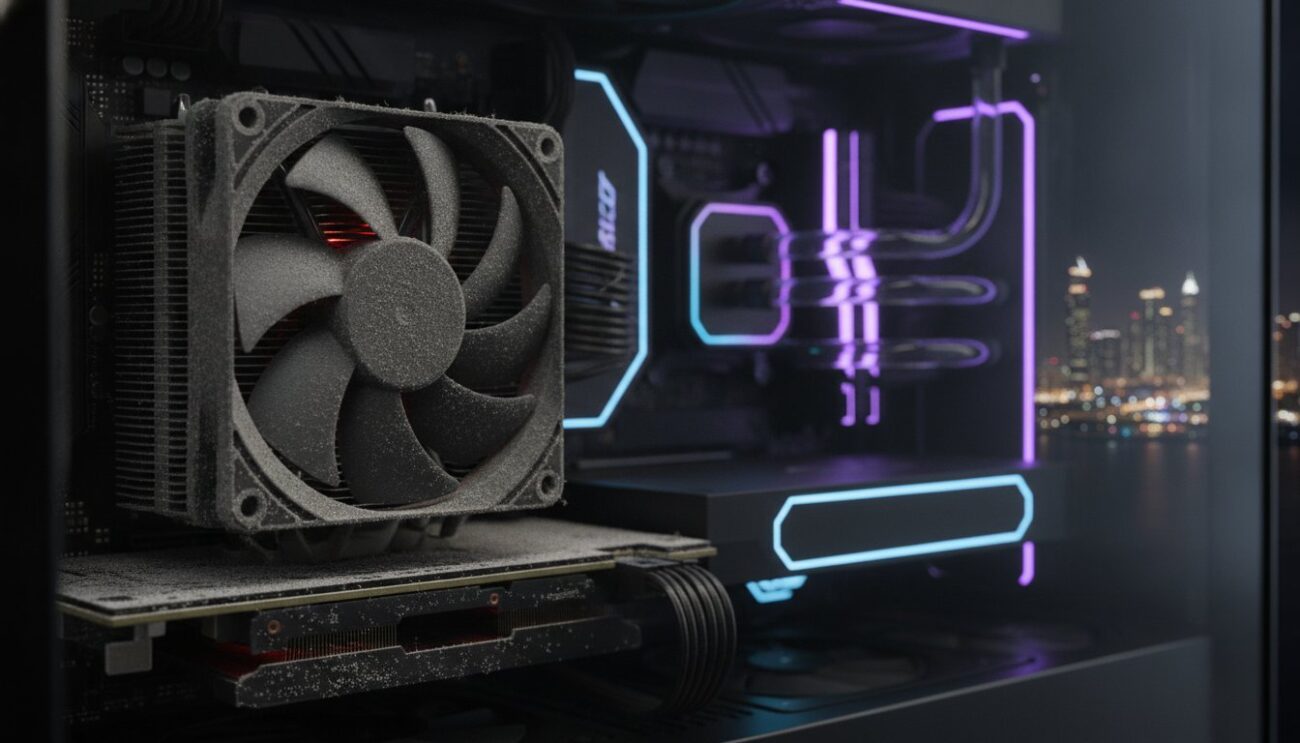
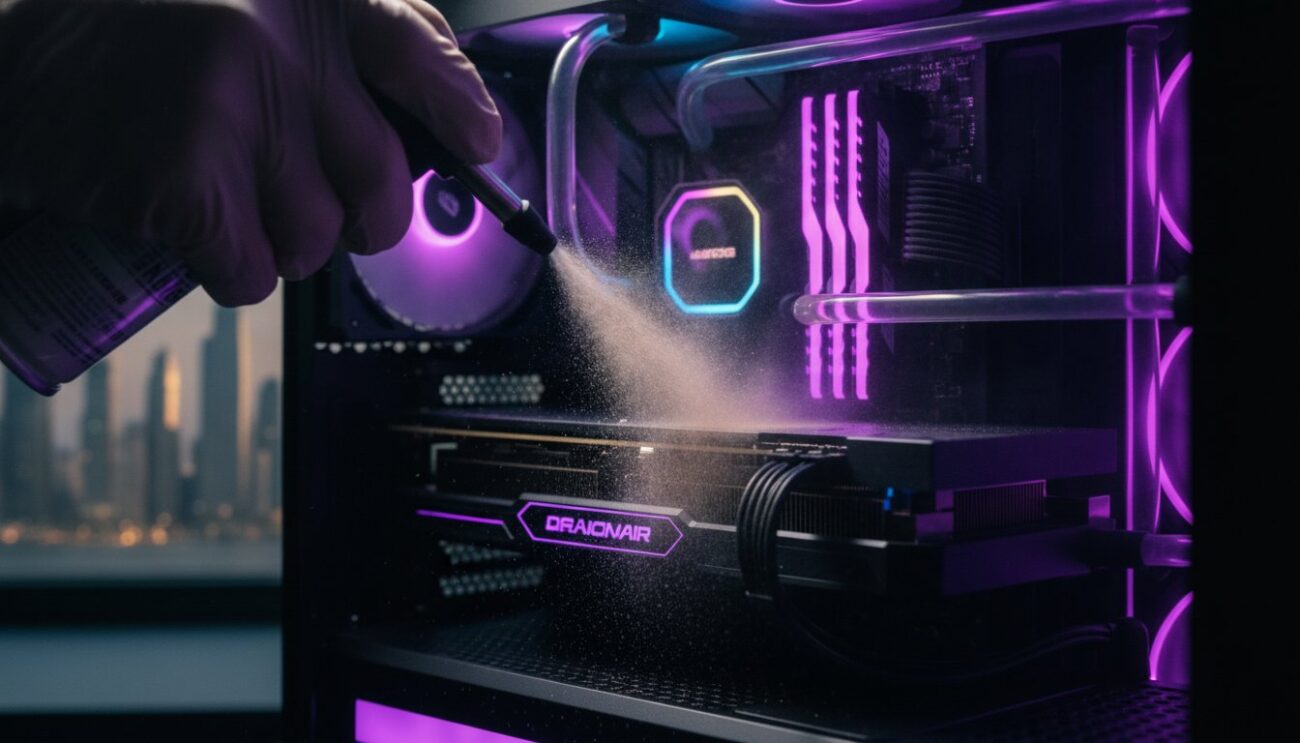
Airflow direction is just as important as the number of fans. Aim for positive pressure by having more intake fans than exhaust fans. This setup forces air out of every small gap in the case, which helps prevent dust from settling on your heatsinks. Dust is a thermal insulator that traps heat. Clean your dust filters at least once a month to keep air moving freely. Never place your PC inside a closed desk cabinet. These “hot boxes” trap exhausted air and recirculate it back into the system, causing temperatures to skyrocket in minutes.
Applying Advanced Cooling Solutions
If your stock air cooler is struggling, it’s time to upgrade. An All-in-One (AIO) liquid cooler is often the best choice for high-end builds in the Middle East. Liquid cooling moves heat away from the CPU much faster than traditional metal fins. Don’t overlook your thermal paste either. High-quality thermal paste can drop temperatures by several degrees compared to the cheap pre-applied stuff. Finally, dive into your BIOS and adjust your fan curves. Set your fans to ramp up to 100% speed earlier in the temperature curve. This ensures your system stays ahead of the heat rather than trying to cool down after the throttling has already started.
In-Game Settings and Hardware Bottlenecks
Setting every slider to “Ultra” is a trap. You don’t need a supercomputer to achieve a lag free gaming pc build uae; you just need to be smart about your graphics menu. Some settings offer diminishing visual returns while eating 30% of your performance. Ray Tracing is the most famous culprit. It looks stunning but requires massive compute power that can tank your frame rates. Volumetric Clouds and Ultra Shadows are other silent killers. Lowering these to “High” or “Medium” often yields a double-digit FPS boost without noticeably changing how the game looks during fast-paced action.
Use upscaling technology to reclaim your frames instantly. DLSS (NVIDIA), FSR (AMD), and XeSS (Intel) allow your PC to render the game at a lower resolution and upscale it using AI. This is a game-changer for high-resolution 1440p or 4K monitors. Beyond software settings, check your physical hardware limits. By 2026, 16GB of RAM has become the absolute minimum for modern AAA titles. If you’re hitting 95% RAM usage, your system will swap data to your drive, causing massive stutters. Additionally, running games off an HDD instead of an SSD causes asset streaming lag because the game struggles to load high-quality textures in real-time.
Optimizing for High Refresh Rates
Your hardware and display must work in harmony to prevent visual lag. Always try to match your in-game FPS cap to your gaming monitor refresh rate. If your PC pushes 100 FPS but your screen only supports 60Hz, you’ll see screen tearing. Use G-Sync or FreeSync to eliminate this tearing without the heavy input lag associated with traditional V-Sync. This balance is why The Budget King PC Build targets 1080p high-refresh gameplay. It’s about smoothness over raw pixel count. To find a system that perfectly balances these specs for your budget, check out our latest Pro Gaming PC configurations.
Background Task Cleanup
Your PC is a multitasker, but gaming requires total focus. Browser tabs are notorious RAM hogs. Close Chrome or Edge before launching a heavy title to free up resources. You should also disable in-game overlays from Steam, Discord, and the EA App. These overlays sit on top of your game and consume precious CPU cycles that should be dedicated to frame timing. Even your aesthetic choices matter. Live wallpapers and heavy RGB software suites can cause micro-stutters by constantly polling your hardware in the background. Keep your system lean to keep your gameplay mean.
Professional Optimization and Upgrade Paths
Software tweaks go a long way. But sometimes, the problem is physical. You need to know if you’re dealing with a simple configuration error or a genuine hardware defect. A faulty RAM stick or a failing Voltage Regulator Module (VRM) can cause stutters that no driver update can touch. Don’t let a mystery bottleneck ruin your experience. Professional stress testing is the only way to be 100% sure your hardware is healthy. If your current rig is struggling to keep up with 2026’s most demanding titles, it might be time to move from the Budget King PC Build to the more robust Pro Gaming PC. Our warranties at Budget Gamer UAE specifically protect you against performance degradation, giving you peace of mind that your lag free gaming pc build uae will stay fast for years.
Local support is your greatest asset. Unlike international retailers, we provide immediate assistance right here in the Emirates. If a component fails, you don’t have to wait weeks for overseas shipping. We handle hardware swaps quickly so you can get back to the game. This local reliability is why thousands of enthusiasts trust us to maintain their high-performance systems. Whether you need a simple fan replacement or a total system overhaul, we have the tools and the parts ready to go.
Our Professional Diagnostic Process
We don’t guess; we measure. Our team uses industry-standard synthetic benchmarks like 3DMark and Cinebench to verify every aspect of your system’s performance. We look at frame time consistency and thermal saturation to find hidden flaws. This component-level testing identifies everything from unstable power delivery to failing memory modules. By comparing your results against our database of verified builds, we can tell exactly where your system is underperforming. It’s a scientific approach that guarantees your PC hits its maximum potential.
Flexible Upgrades with Tabby
Upgrading shouldn’t break the bank. If you find that a single component is holding you back, you can use Tabby UAE to split the cost into interest-free installments. This makes moving up to a higher-tier system like The Ultra High-End PC more accessible than ever. You can even trade in your current rig to offset the cost of a brand-new Beast Gaming System. Don’t settle for a stuttering experience when professional-level performance is within reach. Get a professional PC health check at Budget Gamer UAE today!
Take Control of Your Gaming Performance
Identifying the root cause of your stuttering is the only way to reclaim your frames and your competitive edge. You now have the diagnostic framework to verify your driver health, manage the intense UAE heat, and balance your in-game settings for maximum efficiency. Whether it’s a simple software fix or a hardware bottleneck, you don’t have to settle for anything less than a smooth experience. Achieving a lag free gaming pc build uae is an attainable reality for every enthusiast in the region.
If you’ve followed these steps and your rig is still struggling, let our team take a look. We specialize in tiered gaming builds optimized for the local climate and offer certified pre-owned systems with performance guarantees. You can even upgrade your setup today without the stress of a massive upfront cost by using interest-free installments via Tabby. Still lagging? Let the experts at Budget Gamer UAE optimize your rig! Your journey to professional-level performance starts here. Get back into the game with total confidence and zero stutter.
Frequently Asked Questions
Why does my PC lag even though I have a high-end GPU?
A high-end GPU can’t perform if your CPU can’t feed it data fast enough. This mismatch often happens when pairing a top-tier card with an older processor, creating a bottleneck. Background software or aggressive Windows power-saving modes can also limit your GPU’s potential. Check your component usage in Task Manager to ensure your system is balanced and isn’t being held back by a single part.
Can a slow internet connection cause my single-player games to lag?
No, single-player games stored locally don’t rely on your internet speed for frame delivery. If you experience stuttering in offline modes, it’s a hardware or software issue rather than your connection. However, games with “always-online” DRM might stutter if the connection to the server drops frequently. For most titles, your ping only affects multiplayer responsiveness, not your raw FPS.
Is 85°C too hot for my gaming desktop during a UAE summer?
85°C is the upper limit for most modern graphics cards before they start to throttle. For a CPU, this temperature is quite high and often leads to performance drops to protect the silicon. Given the intense UAE climate, you should aim for lower temps by improving airflow or upgrading your cooling setup. This is essential to maintain a lag free gaming pc build uae during the hottest months.
How do I know if my CPU is bottlenecking my graphics card?
Watch your usage stats using an overlay while you are gaming. If your CPU usage is pinned at 90% or higher while your GPU usage stays below 80%, you have a bottleneck. This means your processor is working at its absolute limit and holding back your graphics card. It’s a common issue when trying to run 2026’s modern AAA games on older motherboard platforms.
Does having two monitors cause lag while gaming?
Simply connecting a second monitor has a negligible impact on your frame rates. However, running a high-resolution video or a browser with many active tabs on that second screen consumes GPU memory and CPU cycles. If you’re on a budget build, close secondary apps during competitive matches. This ensures every bit of power goes directly to your primary display for the smoothest experience.
Should I always update to the latest Windows version for gaming?
Yes, because updates like Windows 11 26H2 include specific optimizations for newer hardware and better task scheduling. These updates often improve how the operating system handles background processes while you’re in a match. Just ensure you’re installing stable public releases. Avoid experimental beta builds unless you’re troubleshooting a specific new release that requires a niche patch.
What is the difference between micro-stuttering and low FPS?
Low FPS means the game feels slow and choppy because the hardware can’t produce frames quickly. Micro-stuttering happens when your average FPS is high, but individual frames are delivered at inconsistent intervals. This creates tiny, annoying hitches in an otherwise smooth image. It’s usually caused by driver conflicts or background apps rather than a lack of raw graphical power.
How much RAM do I really need to stop game stuttering in 2026?
16GB is the absolute minimum for modern gaming today. Many new titles now recommend 32GB for a truly lag free gaming pc build uae without any background hitches. If you like to keep Discord, Spotify, and a browser open while you play, 32GB ensures your system never has to swap data to a slower storage drive, which is a major cause of stuttering.