Blog
How to Increase FPS on a New PC: 2026 Optimization Guide

Your brand new gaming rig is likely hiding 10% of its raw power behind factory “safe” settings. It’s a common trap. You invest in a Beast Gaming System or a Pro Gaming PC, but you still hit stuttering in high-action scenes or input lag during tight competitive play. You deserve professional-level performance without the elite price tag or the headache of complex menus. Learning how to increase fps on a new pc is the fastest way to bridge the gap between a standard out-of-the-box experience and a true high-performance powerhouse.
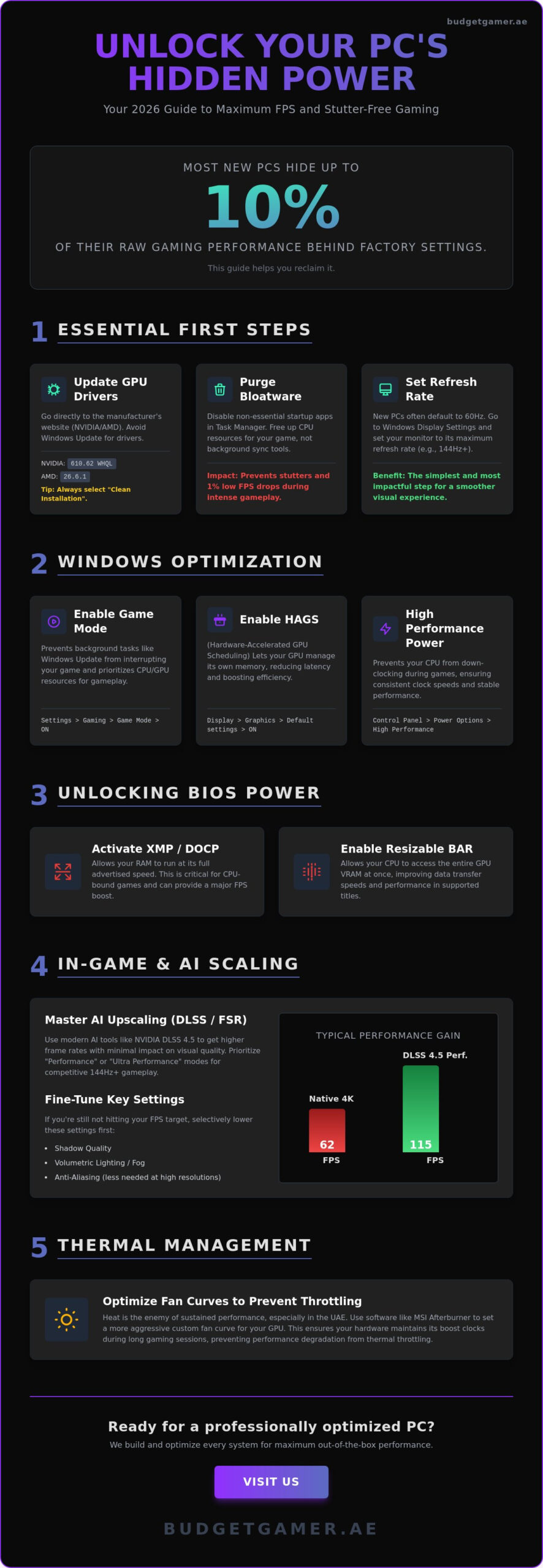
We know that staring at technical jargon feels overwhelming when you just want to play. This 2026 optimization guide promises to unlock your rig’s full potential for smooth 144Hz+ gameplay and rock-solid frame times. We’ll show you exactly which settings actually matter for your hardware. You’ll learn how to deploy NVIDIA’s DLSS 4.5 transformer models, update to the latest 610.62 WHQL drivers, and disable Windows 11 VBS for an immediate 5-10% speed boost. It’s time to stop troubleshooting and start dominating the leaderboard.
Key Takeaways
- Purge factory bloatware and execute a clean GPU driver installation to remove software bottlenecks immediately.
- Master essential Windows 11 features like HAGS and Game Mode to learn how to increase fps on a new pc through simple OS tweaks.
- Access the BIOS to activate XMP and Resizable BAR, allowing your CPU and GPU to communicate at their maximum possible speeds.
- Balance visual fidelity with performance by fine-tuning shadows, lighting, and modern AI upscaling tools for a stutter-free experience.
- Optimize your system’s thermal profile with custom fan curves to prevent hardware throttling during long sessions in the UAE heat.
Essential First Steps: Drivers and Bloatware Removal
Unboxing your new rig is an adrenaline rush. But don’t launch your favorite game just yet. Most pre-built systems, even a top-tier Beast Gaming System, arrive with software configurations optimized for general stability rather than peak gaming power. Factory-installed drivers are often months out of date by the time the hardware reaches your desk. If you want to know how to increase fps on a new pc, you must start by clearing the digital clutter and updating your core software.
Relying on Windows Update is a common pitfall. While convenient, it often installs generic driver versions that lack the specific game-ready optimizations found in official releases. To achieve a professional-grade frame rate (FPS), you need the latest code directly from the source. This ensures your hardware communicates perfectly with modern game engines and eliminates software-level bottlenecks before they start.
Updating Your Graphics Drivers Correctly
Head straight to the manufacturer. Download the NVIDIA app or AMD Software Adrenalin Edition. As of June 2026, NVIDIA users should look for version 610.62, while AMD users need version 26.6.1. These specific updates include vital optimizations for titles like “Empulse” and “F1 25.” When installing, always select the “Clean Installation” option. This process removes old, conflicting files that often cause micro-stuttering during intense firefights. Avoid third-party “driver updater” tools. They are frequently packed with malware or unnecessary bloat that slows your system down.
Cleaning Up Background Processes
Background apps are silent performance killers. Every active “Support Assistant” or cloud storage sync tool consumes CPU resources that should be dedicated to your game. This competition for power causes inconsistent performance and frustrating 1% low FPS drops. Open your Task Manager and navigate to the Startup tab. Disable high-impact apps like chat clients, manufacturer-specific update checkers, and unnecessary media players. You want your CPU focused entirely on the game world, not background tasks you aren’t using.
Finally, check your monitor settings. It’s a frequent mistake to leave a high-performance monitor at a 60Hz default. Navigate to Windows Display settings and ensure your refresh rate matches your monitor’s maximum capability. Whether you’re using a Pro Gaming PC or a Budget King build, these foundational steps ensure you aren’t leaving free performance on the table. Setting your hardware to its maximum potential is the first step toward a stutter-free experience.
Optimizing Windows for Peak Gaming Performance
Windows 11 is built for productivity. But for gamers, its default state is often too conservative. To understand how to increase fps on a new pc, you have to look beyond the physical hardware. You must force the operating system to prioritize your gaming experience over background system stability. These tweaks ensure every cycle of your CPU and GPU is dedicated to rendering frames rather than managing desktop aesthetics.
A new PC is a clean slate. Don’t let Windows fill that slate with inefficient power profiles or resource-heavy visual effects. By taking control of the OS, you bridge the gap between a standard office machine and a true gaming rig. This is the foundation of economic efficiency. You are getting more performance out of the hardware you already paid for.
The Power of Game Mode and GPU Scheduling
Start with Windows Game Mode. Open Settings, go to Gaming, and toggle it on. This feature is essential. It prevents Windows Update from performing driver installations or sending restart notifications while you are in a match. More importantly, it reallocates CPU resources directly to the active game window. This helps maintain stable frame times even in CPU-intensive open-world titles.
Next, look for Hardware-Accelerated GPU Scheduling (HAGS). You will find this under Display > Graphics > Change default graphics settings. Hardware-Accelerated GPU Scheduling is a way for the GPU to manage its own memory independently of the operating system. This reduces input latency and helps modern cards perform more efficiently. If you are struggling with inconsistent performance, Intel’s optimization guide highlights how these low-level tweaks can stabilize your minimum frame rates and eliminate micro-stuttering.
Refining Windows Power and Visuals
Don’t let your PC “sleep” while you are in the middle of a firefight. Search for “Edit Power Plan” in the Start menu. Open “Change advanced power settings” and select the High Performance profile. This prevents your CPU from down-clocking during less intense scenes. Constant clock speeds mean consistent performance. If you are looking to maximize value with one of our pre-owned gaming PCs, this is often the single most effective way to ensure the hardware runs at its original peak potential.
Finally, cut the eye candy. Windows uses minor GPU overhead for “Transparency Effects” and window animations. These look nice but offer zero value during gameplay. Right-click “This PC,” go to Properties, then Advanced System Settings. Under Performance, select “Adjust for best performance.” This strips away the fluff. It frees up resources for your game engine. It is a small change. But in a world where every frame matters, these marginal gains add up to a professional-grade experience.
Unlocking Hidden Power in the BIOS
Most gamers believe the optimization process ends once they reach the Windows desktop. It doesn’t. Your motherboard often holds your hardware back with “safe” factory defaults designed for office stability rather than gaming aggression. To truly master how to increase fps on a new pc, you must step into the BIOS. This is the control center where you flip the switches that turn standard components into high-performance assets. It is the bridge between a basic setup and a professional-grade rig.
Don’t be intimidated by the technical interface. Accessing these settings is a standard part of the gaming journey. By taking a few minutes to configure your hardware at the source, you ensure you are getting every bit of power you paid for. This is economic efficiency in action. You are maximizing your existing investment without spending an extra dirham on hardware upgrades.
RAM Optimization: XMP and DOCP Profiles
Your RAM is likely running much slower than its advertised speed. High-speed memory usually defaults to a basic “safe” speed like 2133MHz out of the box. To reach speeds of 3200MHz or 5200MHz+, you must enable a factory-tested profile. Reboot your PC. Tap the F2 or Delete key repeatedly during the boot screen to enter the BIOS. Look for “Extreme Memory Profile” (XMP) on Intel systems or “D.O.C.P.” on AMD systems. Select Profile 1, save, and exit. This isn’t dangerous manual overclocking. It is simply telling your motherboard to use the high-performance settings the RAM manufacturer already tested and guaranteed.
Resizable BAR and Advanced Features
Resizable BAR is a critical communication bridge between your CPU and GPU. It allows your processor to access the entire GPU frame buffer at once rather than in small, inefficient chunks. This reduces rendering overhead and boosts performance in demanding open-world titles. You can Optimize your PC for gaming by checking this setting in your BIOS under the “Advanced” or “PCIe” menu. Once enabled, you can verify it’s working by opening the NVIDIA Control Panel and checking the “System Information” tab. Look for “Resizable BAR: Yes.”
While you are in the menus, ensure your primary PCIe slot is set to its maximum generation speed. Modern cards need the full bandwidth of Gen 4 or Gen 5 to avoid data bottlenecks. Also, check for BIOS updates on the manufacturer’s website. These updates often include vital stability fixes for the latest 2026 game releases. We believe every enthusiast deserves a high-quality experience without the technical headache. That is why every Beast Gaming System comes with these advanced features pre-configured. We handle the complex tuning so you can jump straight into the action.
In-Game Settings and AI Scaling Technologies
Ultra settings are often a vanity trap. Most gamers assume that sliding every toggle to the right is the best way to experience a new title. In reality, the “Ultra” preset frequently offers diminishing returns. You might lose 20% of your performance for a visual difference that is nearly invisible during actual gameplay. Mastering these menus is the final step in learning how to increase fps on a new pc while maintaining a professional-grade aesthetic.
Focus on the “Big Three” performance killers: Shadows, Volumetric Lighting, and Anti-Aliasing. These settings demand the most from your GPU. By dropping these from “Ultra” to “High,” you often gain a massive boost in stability without sacrificing the core look of the game. It is about being a savvy gamer. You want the highest possible performance for your budget, and smart setting management provides exactly that.
Leveraging AI Upscaling (DLSS/FSR)
In 2026, AI is the ultimate shortcut to high frame rates. Technologies like NVIDIA DLSS 4.5 and AMD FSR 4.1 have changed the game. These tools render your game at a lower internal resolution and use a neural network to upscale the image to match your monitor. The result is often indistinguishable from native resolution but runs up to 30% faster. If you are using a Budget King PC Build, enabling DLSS in “Quality” mode is the single best way to achieve 144Hz+ gameplay in modern AAA titles. It is high-tech performance made accessible for everyone.
Optimizing Visual Settings for Competitive Play
Competitive gaming requires a different philosophy: low visuals, high visibility. In fast-paced shooters, shadows and complex reflections are distractions. They hide enemies in dark corners and eat up valuable GPU overhead. Turn shadows to Low or Medium. Disable Motion Blur and Depth of Field entirely. These effects add “cinematic” weight but create visual clutter that slows your reaction time. Always ensure V-Sync is turned off in your game settings to reduce input lag; use a frame rate cap that matches your monitor’s refresh rate instead. This ensures smooth frame delivery without the latency penalty of traditional sync methods.
Stop settling for mediocre performance. If you want a rig that handles these optimizations with ease, check out our latest Pro Gaming PC configurations today. We build systems that are ready to dominate right out of the box.
Thermal Management and Sustained Performance
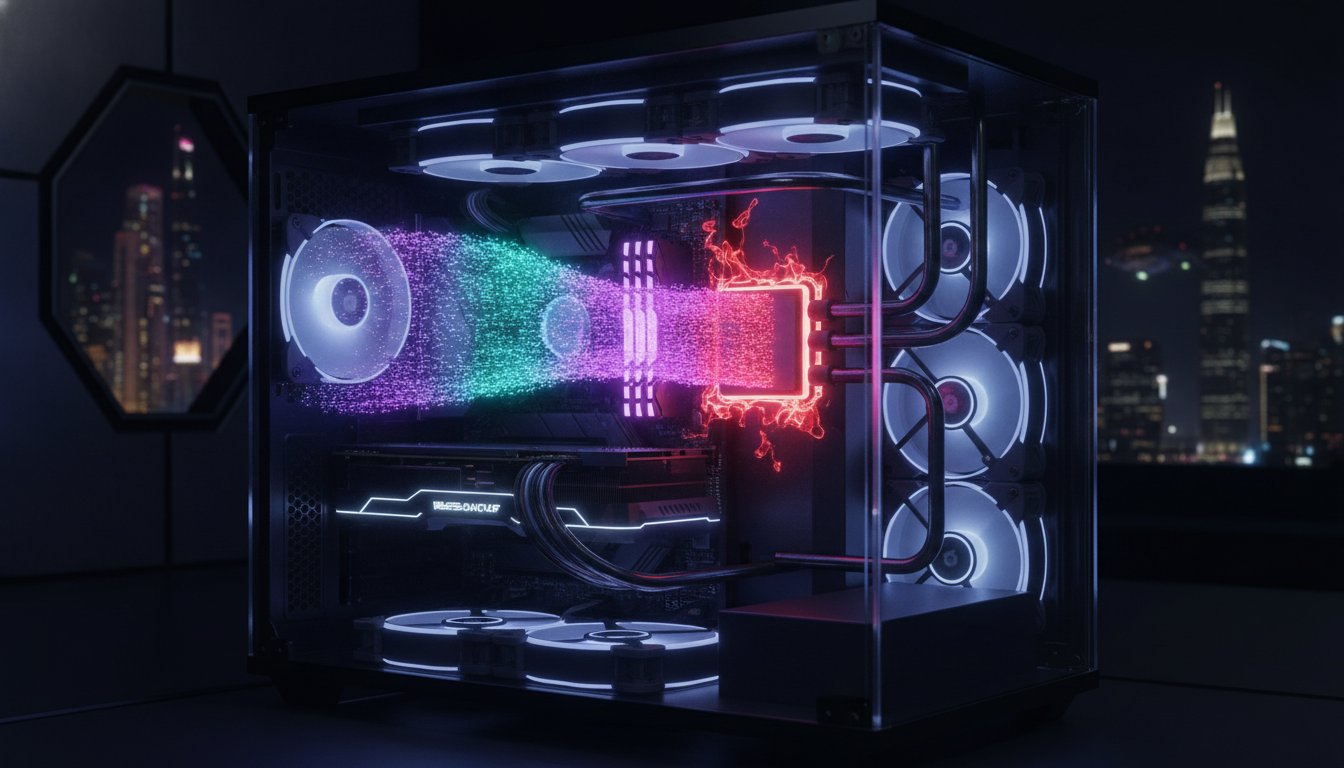
Heat is the silent performance killer. You can optimize every software toggle and BIOS setting, but if your hardware is suffocating, your frame rates will tank. High-performance gaming generates massive amounts of thermal energy. In the unique climate of the UAE, managing this heat is not just a suggestion. It is a requirement. Understanding the physical environment of your rig is a vital part of how to increase fps on a new pc over long gaming sessions. When your components get too hot, they protect themselves by slowing down. This is the difference between a smooth victory and a stuttering defeat.
Professional-level performance requires a professional approach to cooling. You don’t need an expensive custom water loop to stay competitive. You just need to be savvy about airflow and monitoring. By keeping your temperatures in check, you ensure that your Pro Gaming PC or Beast Gaming System runs at its advertised clock speeds indefinitely. This is about economic efficiency. You are protecting your investment and ensuring you get the maximum value out of every component you purchased.
Beating Thermal Throttling in the UAE
Thermal throttling is a fail-safe mechanism. When your CPU or GPU hits a specific temperature limit, it automatically reduces its clock speed to prevent permanent hardware damage. Your PC stays on, but your performance drops off a cliff. In the UAE, high ambient room temperatures can lead to an immediate 10-15% FPS loss if your cooling isn’t up to the task. Never place your PC on a carpet. Carpets act as insulators and block the vital intake vents for your power supply. Always use a hard surface or a dedicated PC stand. Ensure there is at least ten centimeters of space between the back of your case and the wall to allow hot air to exhaust freely.
Monitoring and Maintenance
Knowledge is power. Download free tools like HWMonitor or MSI Afterburner to keep an eye on your vitals while you play. You should aim for sustained temperatures under 85°C for both your CPU and GPU. If you see your numbers creeping higher, it is time to adjust your fan curves. Most GPU software allows you to set a custom profile. Make your fans spin faster at lower temperatures to stay ahead of the heat curve. A slightly louder fan is a small price to pay for a stable 144Hz experience. At Budget Gamer UAE, we understand the local challenges. Every system we build is stress-tested for thermal stability in local conditions. We ensure your hardware is ready for the desert heat before it ever reaches your door. Stay cool, stay fast, and keep your frames high.
Ready to Claim Your Competitive Edge?
You’ve cleared the bloatware, flipped the BIOS switches, and mastered the latest AI upscaling tools. These essential steps transform a standard factory machine into a professional-grade powerhouse. Learning how to increase fps on a new pc is about more than just chasing high numbers. It’s about eliminating the stutter and input lag that stand between you and victory. You now have the technical blueprint to maintain peak performance even during the most intense sessions in the UAE heat.
We believe that elite gaming should be accessible to everyone in our community. If you want a rig that arrives pre-optimized and battle-ready, we’ve got the solution. Upgrade your rig today with the Beast Gaming System. Every build we deliver features UAE-tested thermal configurations to ensure your hardware never throttles. We make it easy with interest-free installments through Tabby, backed by our local support and full warranty. Professional performance is finally an attainable reality. Get back into the action and dominate the leaderboard.
Frequently Asked Questions
Why is my new PC underperforming in games?
Underperforming is usually due to factory defaults like outdated drivers, pre-installed bloatware, or disabled BIOS features. Many users forget that a new machine is often configured for general office stability rather than raw power. Checking these hidden settings is the first step in learning how to increase fps on a new pc. It’s about bridging the gap between standard defaults and aggressive gaming optimizations. You need to tell your hardware that it’s time to work at full capacity.
Will increasing my FPS void my PC warranty?
Standard software optimizations and enabling factory-tested BIOS profiles like XMP will not void your warranty. These are manufacturer-supported features designed to help you get the most out of your hardware. However, manual voltage manipulation or physical hardware modifications might put your coverage at risk. Always stick to the official software tools and manufacturer-provided profiles mentioned in this guide to keep your warranty intact while maximizing your frame rates safely.
How much of an FPS increase can I expect from driver updates?
You can expect anywhere from a 5% to 20% performance boost depending on the game’s release date and engine. Driver updates often include specific code optimizations for new titles to fix bugs and improve efficiency. For example, NVIDIA’s June 2026 update specifically targeted titles like “Empulse” to ensure smoother delivery. Regular updates ensure your GPU communicates perfectly with the latest game engines, which prevents unnecessary stuttering and frustrating lag during your matches.
What is the best Windows power setting for gaming?
The “High Performance” power plan is the gold standard for most gaming setups. It prevents your CPU from dropping its clock speed during gameplay, ensuring consistent performance when the action gets intense. While “Ultimate Performance” exists on some systems, “High Performance” offers the best balance of stability and speed without unnecessary power draw. This simple toggle is a core part of how to increase fps on a new pc and is very easy to activate.
Can I increase FPS on a laptop the same way as a desktop?
Yes, the software steps like driver updates, Game Mode, and AI upscaling work identically on laptops. However, laptops are much more sensitive to heat and power limits. You must ensure the device is plugged into a wall outlet to avoid battery-saver throttling. Always use a hard, flat surface to keep the intake vents clear, as laptops hit thermal limits much faster than desktop rigs due to their compact internal designs.
Is it safe to enable XMP in the BIOS?
It is completely safe because XMP is a factory-tested profile provided by the RAM manufacturer. It isn’t manual overclocking. Enabling this setting simply allows your motherboard to use the high speeds you already paid for at the store. Without it, your memory will likely stay at a “safe” default speed, which can bottleneck your CPU in demanding competitive titles. It’s a standard step for every gaming enthusiast who wants professional-level performance.
How often should I clean my PC to maintain high FPS?
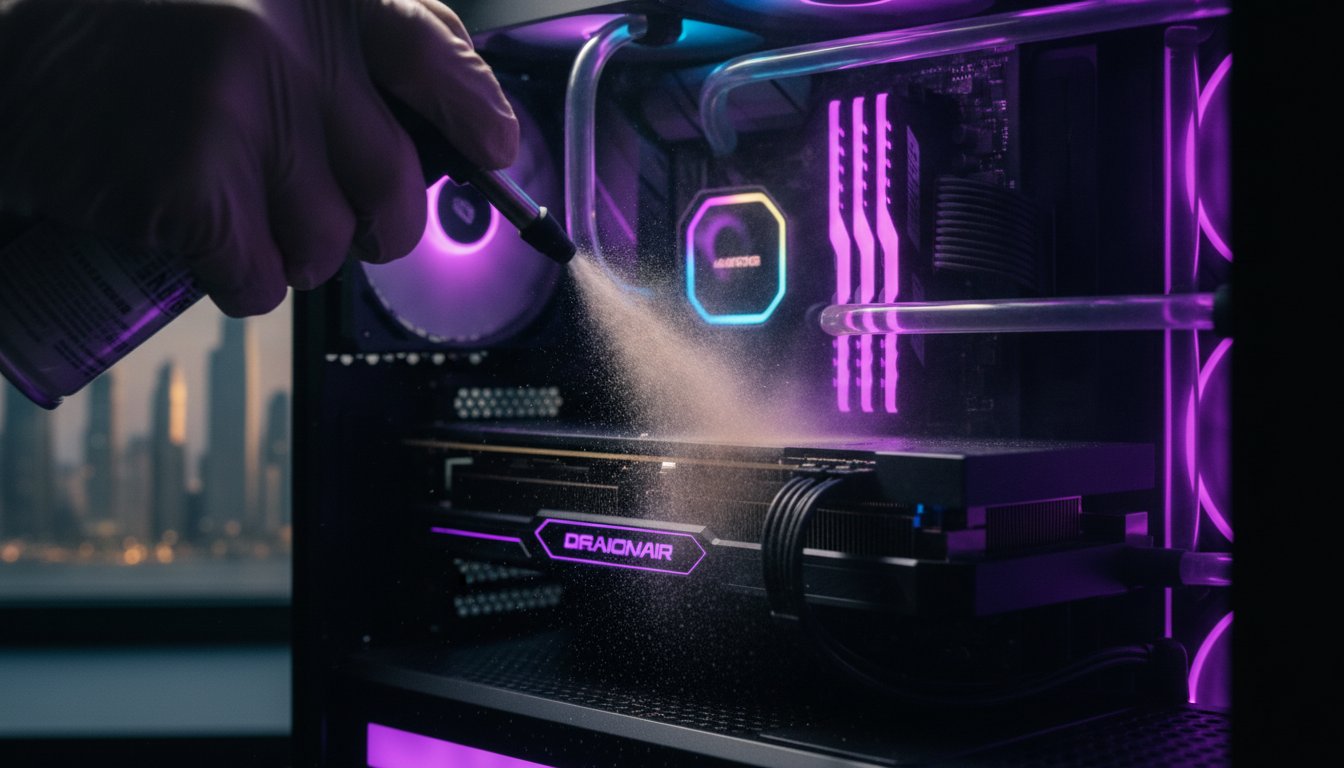
You should perform a light cleaning every three to six months, especially if you live in a dusty environment. Dust buildup on fans and heatsinks reduces cooling efficiency, which leads to higher temperatures and eventual performance drops. A quick blast of compressed air keeps your airflow optimal and your components happy. It is a low-cost way to ensure your hardware maintains professional-level performance for years without needing expensive hardware repairs.
What is thermal throttling and how do I stop it?
Thermal throttling is a protective feature where your hardware slows down to avoid permanent heat damage. You stop it by improving internal airflow, adjusting fan curves, and ensuring your room temperature is controlled. Use monitoring tools to check if your components stay under 85°C during heavy loads. If they don’t, reposition your case or increase fan speeds immediately. Maintaining cool temperatures is the only way to ensure your rig delivers sustained, high-speed performance every time.