Blog
The Ultimate Gaming PC Maintenance Guide 2026: Protect Your Performance

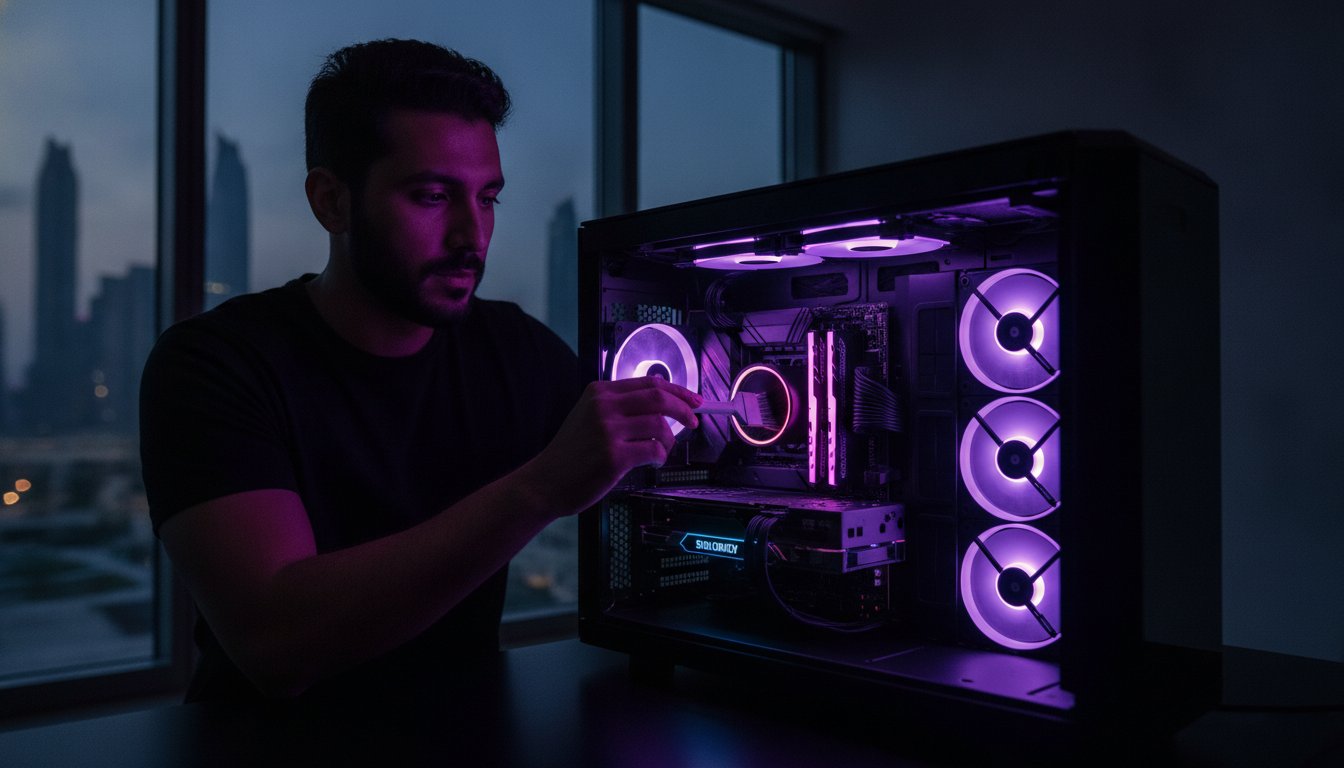
Did you know that the “Desert Effect” in the UAE can slash your frame rates by up to 40% just by clogging your filters with fine sand? It’s a silent performance killer that turns your high-end hardware into a loud, overheating mess. This gaming pc maintenance guide is your ultimate roadmap to reclaiming that lost speed. We understand the fear of touching delicate components or the frustration of sudden FPS drops during a clutch moment. You deserve a rig that runs quiet and stays cool, even when the ambient heat is rising outside.
We agree that professional-level performance should be an attainable reality for every gamer. This guide promises to show you how to clean, optimize, and protect your hardware to ensure peak performance for years. You’ll learn how to drop CPU temperatures from a dangerous 95°C back to a safe 65°C using simple, actionable steps. We’ll preview essential monthly filter checks, the latest June 2026 driver updates like NVIDIA version 610.62, and the best ways to extend the lifespan of your expensive components. It’s time to build your confidence and keep your system running like a pro.
Key Takeaways
- Understand how the unique UAE environment dictates your cleaning schedule to prevent thermal throttling and hardware damage.
- Follow our gaming pc maintenance guide to master safe hardware handling and the essential toolkit for a dust-free build.
- Learn the 24-month rule for thermal paste replacement to ensure your high-end components stay cool under heavy workloads.
- Boost your system speed with software hygiene tips, including the latest 2026 driver updates and SSD optimization techniques.
- Recognize the warning signs of hardware instability and discover how regular care preserves the resale value of your system.
Why Gaming PC Maintenance is Mandatory in the UAE
Living in the UAE means your gaming rig faces a unique set of challenges. High-airflow cases are excellent for cooling, but they act like high-powered vacuums for the fine desert sand found in Dubai and Abu Dhabi. This microscopic dust coats your components, trapping heat and forcing your fans to work harder than ever. Proper Computer maintenance isn’t just about aesthetics; it’s a critical strategy to prevent your expensive GPU from hitting its 100°C thermal limit. Even a Budget King PC Build needs premium care to stay competitive. If you ignore the dust, you’re essentially choosing to kill your hardware early.
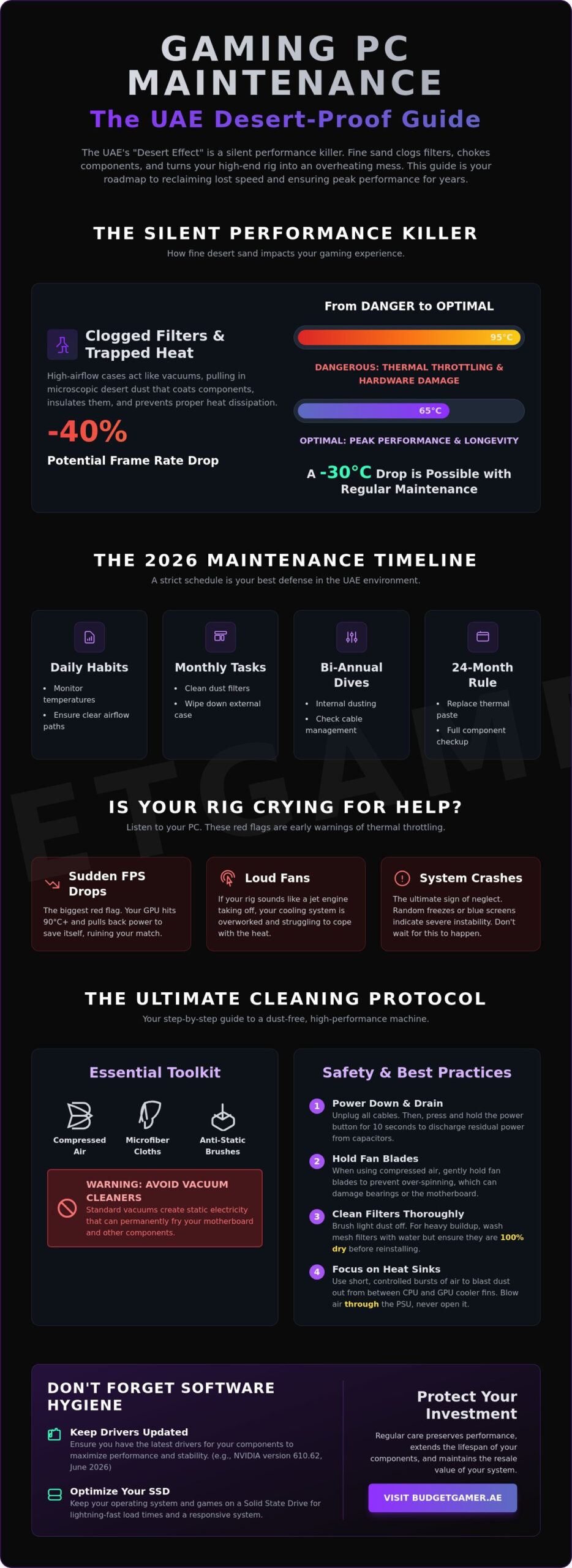
This gaming pc maintenance guide is designed to keep you in the game. Neglect leads to thermal throttling, where your CPU or GPU slows down to prevent melting. Research shows that professional servicing can drop temperatures from a dangerous 95°C to a cool 60°C. That is a massive 35-degree difference. By staying proactive, you can improve your system performance by up to 15% and see FPS gains of 20-40%. It’s about protecting your investment and ensuring your hardware reaches its maximum lifespan.
The 2026 Maintenance Frequency Table
Stick to a strict schedule to keep your performance at its peak. In our local environment, you can’t afford to wait for things to break. Action is the best defense—and just as your PC needs a routine to survive the desert heat, your skin does too; you can find out more about effective protection.
- Daily habits: Monitor your temperatures using software like HWMonitor or MSI Afterburner. Check that airflow paths around your desk are clear and unobstructed.
- Monthly tasks: Inspect and clean your dust filters. In the UAE, filters can clog in just four weeks. Wipe down the external case to prevent surface buildup.
- Bi-annual deep dives: Perform internal dusting using compressed air. Check your cable management to ensure no loose wires are blocking the intake fans or GPU fans.
Signs Your Rig is Struggling
Your PC will tell you when it’s hurting. Sudden FPS drops during intense gaming sessions are the biggest red flag for thermal throttling. When your GPU hits that 90°C threshold, it will pull back power to save itself, ruining your match. Listen to your fans. If they sound like a jet engine taking off or if you hear high-pitched “coil whine” patterns, your cooling system is struggling. Don’t wait for a total system crash. Link these performance issues to hardware hygiene immediately. Regular care keeps your rig quiet, cool, and ready for any challenge.
A smooth, vibration-free experience is essential for both your gaming sessions and your daily commute in the UAE. If you’ve noticed your vehicle isn’t handling as well as it used to, you can check out Car Suspension Repair for professional shock and strut services in Dubai.
The Step-by-Step Hardware Cleaning Process
Ready to get your hands dirty? You need the right tools for the job. Grab a can of compressed air, high-quality microfiber cloths, and a set of anti-static brushes. These are the essentials for any gaming pc maintenance guide. Avoid using a standard vacuum cleaner inside your case. Static buildup from plastic vacuum nozzles can fry your motherboard in seconds. Professional-grade cleaning starts with professional-grade safety.
Power down and unplug. This is the “Safety First” protocol. After pulling the plug, hold the power button for at least ten seconds. This simple step drains the residual power from the capacitors. It protects you and your hardware from accidental shorts while you work. If you’re looking to upgrade while you clean, check out our pre-owned gaming PCs for high-performance parts that won’t break the bank.
Focus on the heat sinks. These metal fins are where heat dissipation happens. Use short, controlled bursts of compressed air to blast dust out from between the GPU fins. Do the same for your CPU cooler. For the PSU, never open the metal casing. It’s dangerous and voids your warranty. Instead, blow air through the intake fan and out the rear exhaust to clear the internal components. This keeps your power delivery stable and cool.
Safe Handling of Cooling Fans
Hold the blades. Never let your fans spin freely when using compressed air. Over-spinning can ruin the bearings or generate a small electrical charge that damages the motherboard. Use a finger or a soft brush to keep the blades stationary while you blast the dust away. Clean both the intake and exhaust fans to maintain the positive pressure required for optimal cooling. This ensures that fresh air moves through the case and hot air exits quickly.
Managing Dust Filters and Airflow
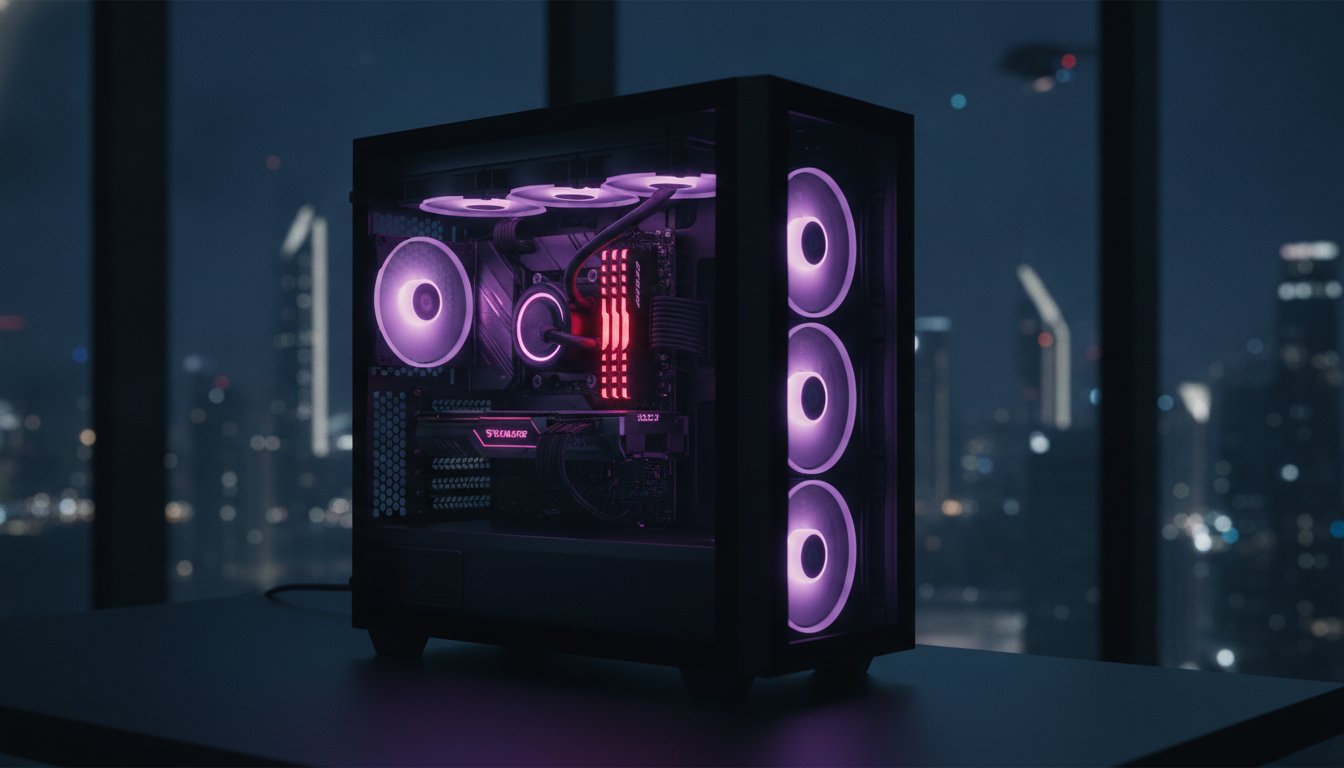
Modern cases, like the one used in The Beast Gaming System, often have hidden filters. Check the bottom, front, and top panels. In the UAE, these filters act as your first line of defense against fine sand. Brushing works for light dust, but for heavy buildup, wash the mesh filters with water. Ensure they are 100% dry before sliding them back in. Proper placement matters too. Keep your PC off the carpet to ensure the bottom intake can actually breathe. A clear airflow path is the secret to a quiet, high-performance rig.
Thermal Management: Beyond Surface Dust
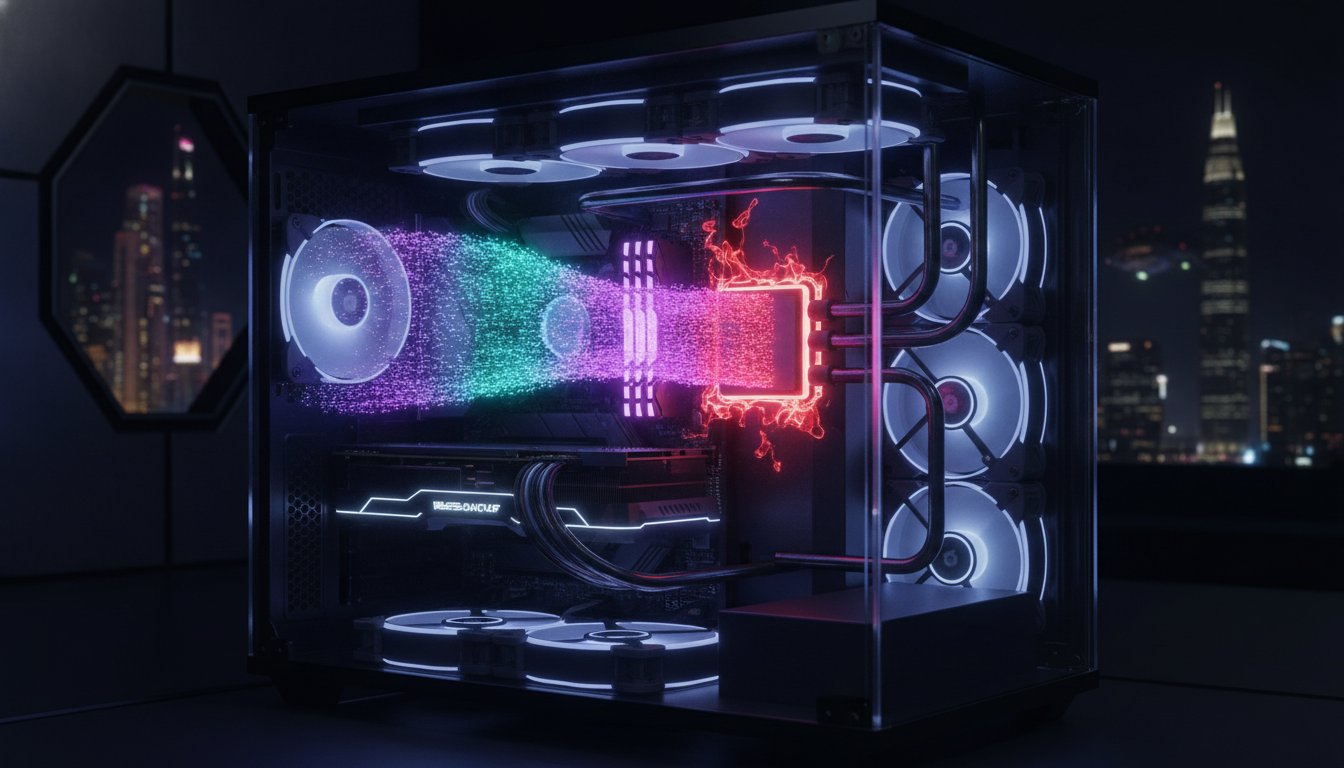
Surface cleaning is just the start. If your temperatures remain high after a deep dust-out, your thermal interface is likely the culprit. Thermal paste fills the microscopic gaps between your processor and the heat sink. Over time, heat cycles cause this paste to dry and crack. In the harsh UAE climate, this happens faster than you might expect. We recommend the 24-month rule. Re-applying paste every two years ensures your Pro Gaming PC maintains its edge. This gaming pc maintenance guide focuses on these internal details to prevent the dreaded FPS stutter caused by dried-out compounds.
Modern monitoring tools allow you to track real-time temperature deltas. This is the difference between your idle and load temperatures. If your CPU idles at 45°C but jumps instantly to 90°C under load, your thermal paste has lost its effectiveness. Liquid cooling adds another layer of complexity. All-In-One (AIO) coolers are closed systems, but they aren’t immortal. You must stay vigilant. Listen for grinding noises or sudden temperature spikes that indicate a failing pump or liquid loss.
Replacing Thermal Paste Safely
Choosing the right compound matters. High-performance non-conductive pastes are the safest choice for most builds. They provide excellent heat transfer without the risk of shorting components. First, use 99% Isopropyl alcohol and a lint-free cloth to dissolve old, crusty residue. Be thorough. The “Pea Method” remains the expert consensus for 2026. Place a single small drop in the center of the CPU. The pressure from the heat sink will spread it evenly. This prevents air bubbles and ensures maximum contact without the mess of manual spreading.
AIO Liquid Cooler Maintenance
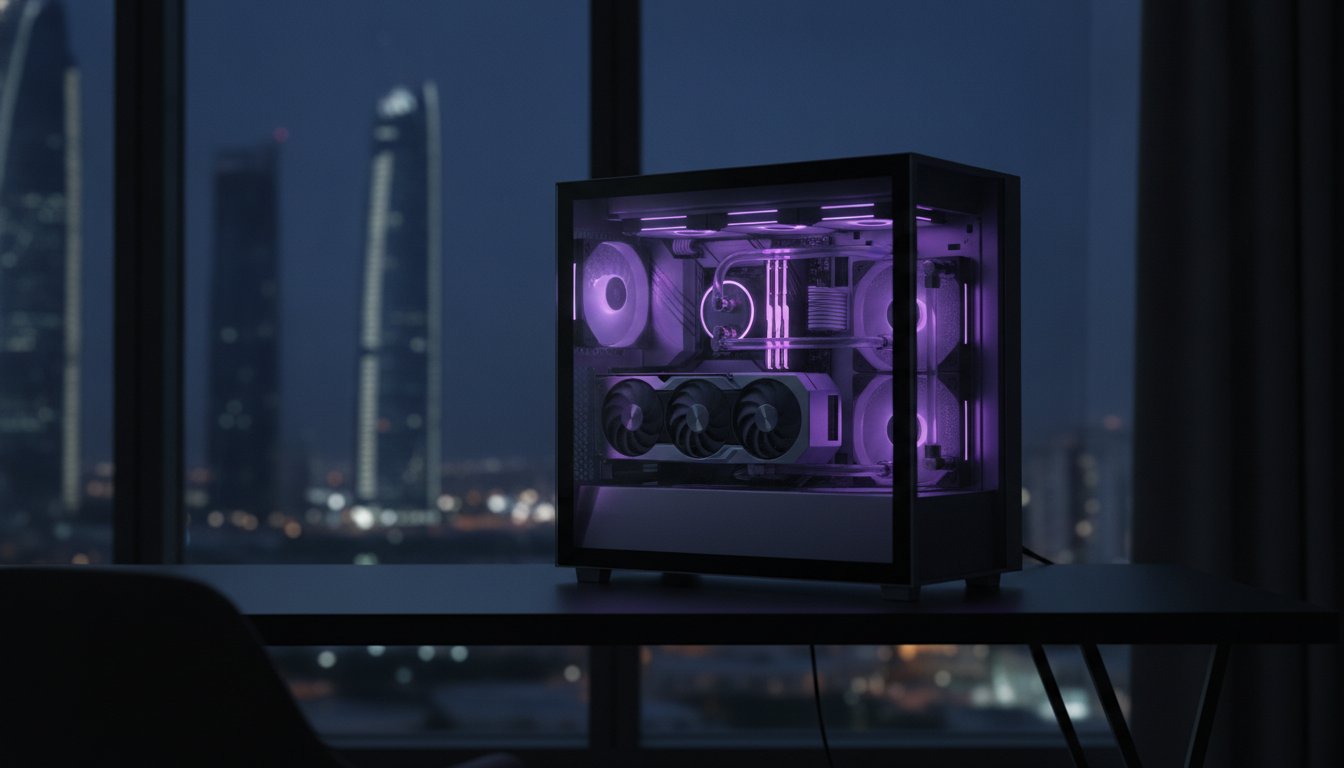
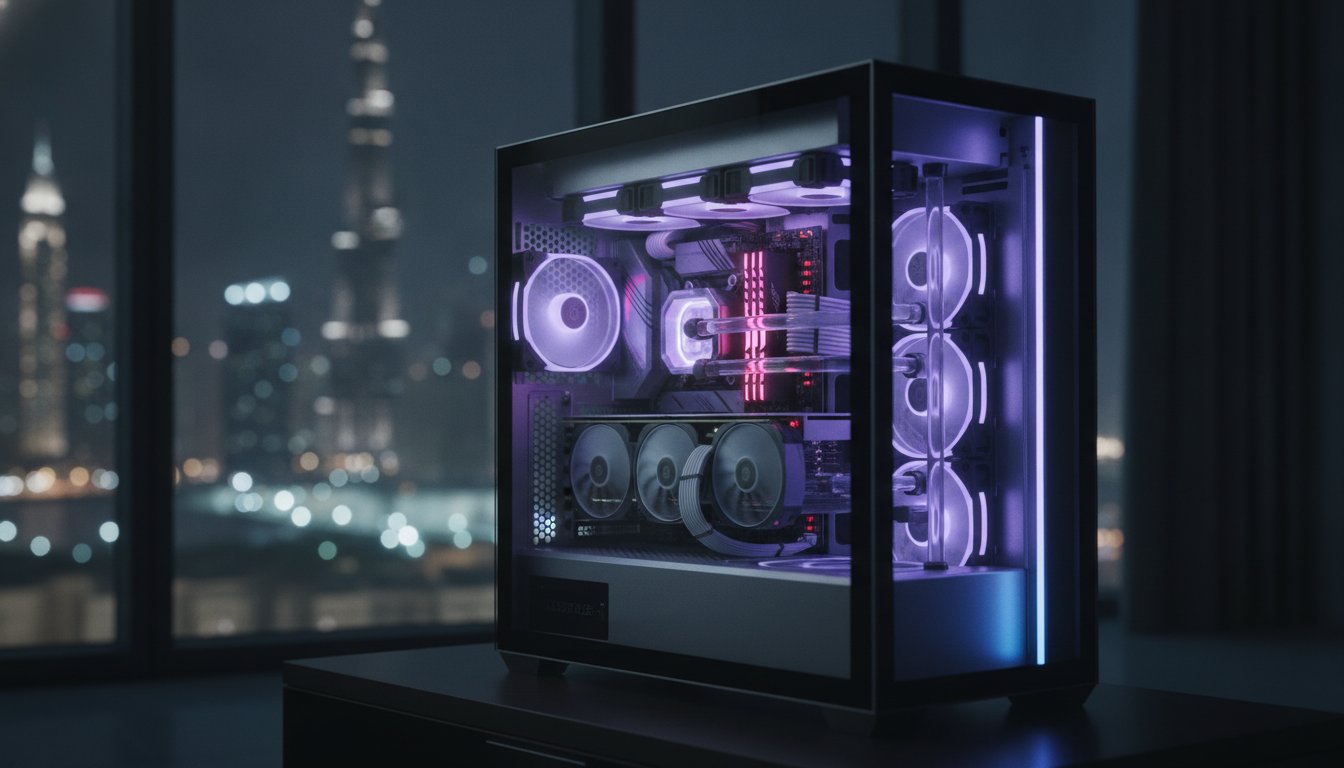
Liquid coolers suffer from “permeation” over time. This is when liquid slowly evaporates through the rubber tubing. It creates air bubbles that get trapped in the pump, causing a distinct gurgling sound. If you hear this, try tilting your case gently to move the bubbles into the radiator. Radiators act as a wall for dust. Even if your case looks clean, the dense fins of an AIO radiator can be packed with debris. Use compressed air to blast through the radiator from the inside out. This clears the path for fans to move heat away from your Ultra High-End PC efficiently. If temperatures stay high despite a clean radiator, your pump is likely nearing its end of life.
Software Hygiene: Optimizing the Digital Environment
Hardware cleaning is only half the battle. You can have the cleanest case in Dubai, but a cluttered operating system will still tank your frame rates. Software bloat and outdated drivers often mimic the symptoms of hardware failure, causing stutters and crashes that feel like overheating. This gaming pc maintenance guide moves inside the machine to ensure your digital environment is as lean as your physical one. A responsive OS is the secret to getting the most out of every dirham spent on your components.
Managing your startup impact is your first priority. Every app that launches when you boot up eats into your RAM and CPU cycles. Open your Task Manager and disable anything you don’t need for immediate gaming. This is especially critical for entry-level rigs where resources are tighter. Keeping your background processes minimal ensures your hardware focus remains entirely on the game. If you want a system that comes pre-optimized for peak performance, browse our The Pro Gaming PC selection to see how we tune our builds.
Advanced Driver and Firmware Updates
Stay current with official manufacturer tools. As of June 2026, the latest NVIDIA GeForce Game Ready Driver is version 610.62 WHQL, and AMD users should be on Radeon Adrenalin version 26.6.1. These updates provide critical optimizations for the latest titles. Avoid third-party “driver updaters” that promise one-click fixes; they often install incorrect versions or bloatware. Don’t ignore your BIOS and Chipset drivers either. Updating your motherboard firmware can solve deep-seated stability issues in custom builds. If a new driver causes issues, keep a rollback strategy ready by using Display Driver Uninstaller (DDU) for a clean slate.
Storage Health and Registry Cleanup
Your SSD requires a different approach than old hard drives. Never defrag an SSD. It adds unnecessary wear to the flash cells and provides zero performance gain. Instead, ensure “Trim” is enabled to let your OS manage data efficiently. Monitor your NVMe drive’s life expectancy and temperature using manufacturer software. High temperatures on an SSD can lead to speed throttling just like a GPU. Clear out your temporary data and cache files monthly to free up space. This keeps The Budget King PC Build running fast and responsive. For a deeper look at choosing the right storage for your next upgrade, check out our guide on PC Build UAE: The Ultimate 2026 Guide.
Professional Servicing and Protecting Your Investment
Sometimes, your toolbox isn’t enough. Knowing when to stop DIY is just as vital as knowing how to start. If you notice random system reboots, a faint burning smell, or visible bulging on motherboard capacitors, stop immediately. These are signs of serious hardware fatigue. PSU instability is particularly dangerous. A failing power unit can take your entire Ultra High-End PC down with it in a single surge. Don’t risk a total system fry-out when professional intervention is accessible and affordable. Think of regular professional servicing as insurance for your hardware investment. This is especially true if you’re protecting a high-performance rig secured through flexible payment plans like Tabby. You want that hardware to outlast the final payment.
Maintenance is also about future-proofing your wallet. A well-documented gaming pc maintenance guide history significantly preserves the resale value of your equipment. When you eventually decide to trade up, a clean, dust-free system with healthy thermal deltas commands a much higher price on the secondary market. Buyers look for rigs that have been loved, not neglected. By keeping your system in top shape, you’re effectively subsidizing your next big upgrade. It turns a potential loss into a savvy financial move.
Maintenance for Pre-owned Gaming PCs
Buying used doesn’t mean buying trouble, but it does require a smart strategy. Pre-owned Gaming PCs need an immediate “baseline” maintenance session. You can’t be certain about the previous owner’s cleaning habits or if they lived in a high-dust area near the coast. Start by checking the fan bearings for any grinding or rattling noises. Inspect the capacitor health on the motherboard for any signs of leakage or “bloating.” Establishing this baseline allows you to track your own maintenance schedule with total confidence from day one. For more tips on finding a quality used system, read our guide on Pre-owned Gaming PCs: Reliable Used Rigs.
The Budget Gamer UAE Advantage
We take performance seriously at Budget Gamer UAE. Our expert assembly standards for The Pro Gaming PC and The Beast Gaming System focus on clean cable management and optimized thermal paths. We don’t just sell hardware. We provide the local support you need to keep it running at professional standards. Our professional deep-cleaning services are designed to be warranty-safe. This ensures your coverage remains intact while we blast away the desert grime. We use specialized tools that go beyond the standard can of compressed air. Get the peace of mind that comes with expert care. Upgrade or service your rig with Budget Gamer UAE today!
Dominate the Competition with Peak Hardware Health
Your gaming rig is more than just a collection of parts; it’s your gateway to elite performance. In the UAE, heat and dust are constant threats that can steal your frame rates and shorten your system’s life. By mastering the monthly cleaning habits and thermal strategies in this gaming pc maintenance guide, you’ve taken the first step toward professional-grade reliability. Don’t let a clogged radiator or outdated drivers be the reason you lose your next match. Consistency is the secret to keeping your hardware quiet and cool.
We specialize in high-performance UAE builds designed to thrive in our unique environment. Whether you’re rocking The Budget King PC Build or pushing limits with our Ultra High-End PC, we provide the expert local support and assembly you need to stay competitive. Our tiered configurations ensure every gamer has access to top-tier hardware without overspending. Browse our Pro Gaming PC builds and professional services today to secure your performance. Stay cool, keep your FPS high, and get back into the game with total confidence.
Frequently Asked Questions
How often should I clean my gaming PC in the UAE?
Clean your dust filters at least once a month to combat the fine sand typical of the UAE environment. A full internal deep clean with compressed air should happen every three to six months. Staying ahead of the “Desert Effect” prevents dust from forming a thermal blanket over your expensive components.
Can I use a vacuum cleaner to clean the inside of my PC?
Never use a standard household vacuum cleaner inside your case. The plastic nozzles build up significant static electricity that can discharge and fry your motherboard or RAM instantly. Stick to compressed air and anti-static brushes to safely dislodge stubborn debris without risking a total system short.
Is it safe to use compressed air on my graphics card?
It is safe and highly recommended for clearing GPU heatsink fins. Just remember to hold the fan blades still with a finger or a soft tool while you blast them. Allowing the fans to spin at high speeds from the air pressure can ruin the bearings or generate an electrical back-feed that damages the card.
How do I know if my gaming PC is overheating?
Watch for sudden FPS drops or loud, racing fan noises during heavy gameplay. If your monitoring software shows your CPU or GPU hitting the 90°C to 100°C range, you’re experiencing thermal throttling. This is your hardware’s way of slowing down to prevent permanent heat damage.
Does opening my PC case void the warranty?
Opening your case for basic cleaning and maintenance generally does not void your warranty. Most manufacturers expect users to perform routine dusting to keep the system healthy. However, avoid removing factory seals on specific components like the PSU or the GPU’s internal screws unless you’re a trained professional.
How often should I replace the thermal paste on my CPU?
Replace your thermal paste every 12 to 18 months for peak efficiency in the GCC region. This gaming pc maintenance guide suggests this shorter interval because high ambient temperatures can accelerate the drying process of thermal compounds. Fresh paste ensures your processor stays within the optimal 65°C to 85°C gaming range.
What are the best software tools for monitoring PC temperatures in 2026?
Use HWiNFO64 or MSI Afterburner for the most reliable real-time thermal data in 2026. These tools track everything from individual CPU core temperatures to GPU hotspot deltas. They’re essential for spotting performance bottlenecks before they turn into hardware failures.
Can dust actually make my games lag?
Dust is a silent performance killer that definitely causes in-game lag. When dust clogs your cooling system, your hardware hits its thermal limit and automatically reduces its clock speed to cool down. Following a consistent gaming pc maintenance guide can recover up to 40% of your lost frame rates by eliminating this thermal throttling.