Blog
How to Optimize Windows 11 for Gaming: The Ultimate 2026 Performance Guide

Your brand-new Windows 11 installation is actually working against your GPU. By default, Microsoft tunes this OS for spreadsheets and video calls, not for hitting 240 FPS in competitive titles. It’s a corporate OS out of the box; gaming optimization is the process of reclaiming those hijacked hardware resources for your graphics card. You’ve likely felt the frustration of sudden frame drops during intense combat or long load times that make your high-speed SSD feel sluggish. It’s a common pain for UAE gamers, but it’s entirely fixable.
We’re here to show you exactly how to optimize windows 11 for gaming to unlock maximum FPS and eliminate stutter for good. You’ll learn how to strip away the bloat and configure the latest 2026 features to ensure your system feels faster than ever. We’ll walk you through everything from disabling Virtualization-Based Security (VBS), which can boost frame rates by up to 15 percent, to activating the new June 2026 Low Latency Profile. Get ready to transform your desktop into a professional-grade gaming powerhouse today.
Key Takeaways
- Activate Game Mode and Hardware-Accelerated GPU Scheduling to prioritize system resources and slash input latency.
- Strip away background telemetry and non-essential startup apps to free up CPU cycles for your favorite titles.
- Master how to optimize windows 11 for gaming by switching to the Ultimate Performance power plan to prevent CPU downclocking.
- Combat the UAE heat by monitoring system temperatures and adjusting fan curves to stop thermal throttling in its tracks.
- Identify hardware bottlenecks and discover why a RAM upgrade is the most cost-effective way to reach professional performance standards.
Essential Windows 11 Gaming Settings: The “Quick Wins”
You don’t need a PhD in computer science to see immediate results. Most users leave massive performance on the table because Windows defaults to “safe” rather than “fast.” Learning how to optimize windows 11 for gaming starts with a few simple toggles that take less than five minutes. These essential tweaks tell your OS to stop acting like a workstation and start acting like a dedicated console. We want to reclaim every bit of power for your GPU.
Enabling Game Mode the Right Way
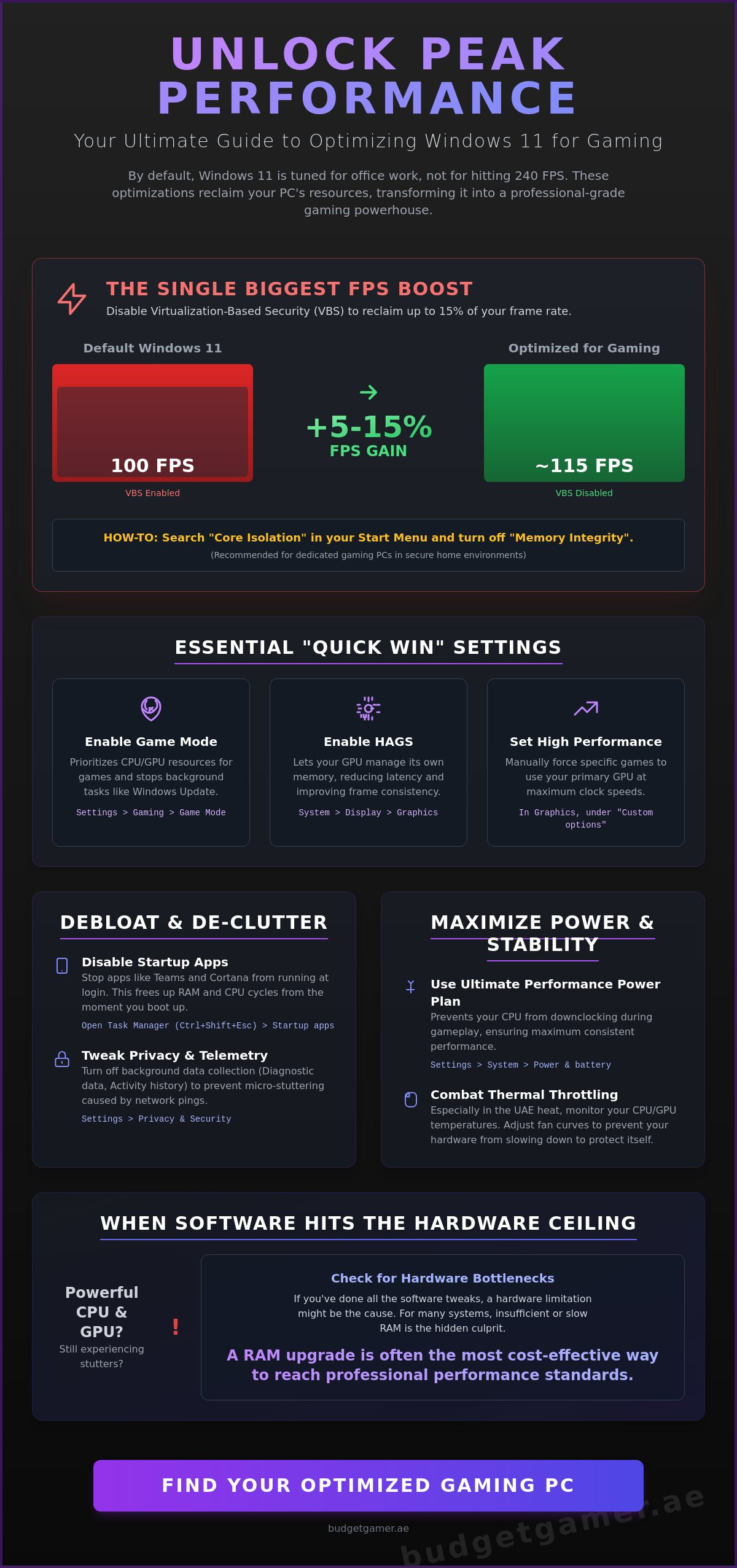
Go to Settings, select Gaming, and then Game Mode. Toggle that switch to On immediately. This isn’t just a marketing gimmick. When active, Game Mode prevents Windows Update from installing drivers or sending restart notifications while you’re in a match. It prioritizes your CPU and GPU resources for the game process itself. This setting is absolutely critical for any pre built pc uae gamers use to stay competitive. It ensures background tasks don’t cause that split-second stutter that costs you a round in the final circle.
Advanced Graphics Settings (HAGS)
Next, head to System, then Display, and click on Graphics. You’ll see an option for Hardware-Accelerated GPU Scheduling, or HAGS. This feature allows your graphics card to manage its own video memory rather than waiting on the OS. It effectively reduces system latency and improves frame time consistency. You’ll need a modern GPU and the latest 2026 drivers to see this option. Since Windows 11 was designed to handle high-end hardware, HAGS is a must-enable for anyone chasing professional standards without overspending on parts.
Don’t stop at the global settings. Scroll down in that same Graphics menu to the Custom options for apps. You can manually browse for the executable files of high-demand titles like Valorant or Warzone. Once added, click Options and select High Performance. This forces the system to use your primary GPU at its maximum clock speed. It’s a simple way to guarantee your hardware isn’t “sleeping” during a heavy firefight.
Finally, address the performance killer: Virtualization-Based Security (VBS). While it adds a layer of security, benchmarks show it can tank frame rates by 5 to 15 percent on certain CPUs. Search for Core Isolation in your Start menu and turn off Memory Integrity. If you’re using your PC primarily for gaming in a secure home environment, this is the single biggest “Quick Win” for reclaiming lost speed. It frees up your processor to focus entirely on game logic and physics calculations. You’ll feel the difference in responsiveness immediately.
Debloating Windows 11: Removing Resource Hogs
Windows 11 arrives with a lot of “baggage” that serves the average office worker but slows down a competitive gamer. These background processes are silent killers of your 1% low frame rates. They sit in your RAM and eat up CPU cycles that should be dedicated to your game engine. When you learn how to optimize windows 11 for gaming, you realize that a lean system is a fast system. You want every single transistor in your processor focused on rendering frames, not sending telemetry data to a server in another time zone.
Mastering the Task Manager
The first step to a cleaner system is taking control of your startup environment. Tap Ctrl+Shift+Esc to open the Task Manager and head straight to the Startup apps tab. You’ll likely see a long list of programs that launch the moment you log in. Apps like Microsoft Teams, Cortana, or various cloud syncers are often labeled with a “High impact” status. Disable them. This doesn’t delete the apps; it just stops them from running until you actually open them. Reducing these startup items speeds up your boot times and keeps your memory clear for heavy gaming sessions. It’s a simple, risk-free way to ensure your hardware is ready for action from the moment you hit the power button.
Privacy and Telemetry Tweaks
Microsoft collects a massive amount of background data to improve user experience. While they highlight Microsoft’s commitment to Windows 11 gaming through better scheduling and driver stacks, you can take control of your privacy right now. Navigate to Privacy & Security in your settings. You should disable “Diagnostic data,” “Activity history,” and “Inking & typing personalization.” These services constantly ping servers in the background. Those tiny pings can cause micro-stuttering during intense combat. Avoid using aggressive automated PowerShell scripts you find on forums. They often break essential system components. A manual cleanup is much safer and ensures your OS remains stable for years to come.
Finally, turn off Windows Notifications and use Focus Assist to silence alerts while you’re in-game. Every pop-up notification requires a small amount of system resources to render and display. It’s a distraction you don’t need when you’re lining up a headshot. If you want a machine that’s already been tuned for professional standards, consider looking at our Pre-owned Gaming PCs for a clean, high-performance start without the bloatware. By stripping away these unnecessary layers, you’re giving your GPU the breathing room it needs to perform at its absolute peak.
Optimizing Power and Display for Maximum FPS
Your OS is clean, but your hardware might still be idling in the background. Windows 11 loves to save power by default. This is great for office laptops but terrible for high-stakes gaming. If you want to know how to optimize windows 11 for gaming, you have to force the system to keep its foot on the gas. We’re going to unlock the hidden potential of your processor and ensure your screen is actually showing you every frame your GPU produces.
Unlocking the Ultimate Performance Plan
Most users stick with the “Balanced” power plan because they don’t know anything else exists. The hidden “Ultimate Performance” plan eliminates micro-latencies by keeping your CPU at its peak clock speed at all times. To reveal it, right-click your Start button and open Terminal (Admin). Paste the following code: powercfg -duplicatescheme e9a42b02-d5df-448d-aa00-03f14749eb61. Once you hit enter, go to your Power Options in the Control Panel and select it. This ensures your pc build uae isn’t downclocking during quiet moments in a game, only to lag when the action explodes. Just be aware that this uses slightly more electricity, but the stability is worth the trade-off for any serious enthusiast.
Display and Refresh Rate Verification
You’d be surprised how many gamers buy a high-end gaming monitor only to play at 60Hz for years without knowing it. Windows 11 often defaults to a lower refresh rate to save energy. Fix this by navigating to Settings, then System, then Display. Click Advanced Display and check the “Choose a refresh rate” dropdown. If your screen supports 144Hz or 240Hz, select the highest number available. Always use a DisplayPort cable instead of HDMI when possible. Many older HDMI standards can’t push high refresh rates at 1440p or 4K resolutions.
While you’re in the display settings, take a look at Auto HDR. This 2026 feature uses AI to upgrade standard lighting in older games to high dynamic range. It gives you a massive visual boost with almost zero impact on your FPS. Finally, search for “Mouse Settings” and click “Additional mouse settings.” Under Pointer Options, uncheck “Enhance pointer precision.” This turns off mouse acceleration. It ensures your aim stays consistent and muscle-memory-based in competitive shooters. Understanding how to optimize windows 11 for gaming means perfecting your inputs just as much as your outputs.
Managing Thermal Throttling and Background Resources
You can tweak every setting in the OS, but software optimization is useless if your hardware is hitting 95 degrees. High ambient temperatures in the UAE mean your silicon has to work twice as hard just to stay within safe operating limits. When your CPU or GPU reaches its thermal limit, it downclocks itself to prevent permanent damage. This results in the sudden, frustrating frame drops you feel during intense combat. Learning how to optimize windows 11 for gaming must include a strategy for heat management and background resource discipline.
Combatting Heat in the UAE Climate
Start by downloading a monitoring tool like HWMonitor. Keep it running on a second screen or check it after a heavy session to see your peak temperatures. If you see your CPU hovering near 90 or 100 degrees Celsius, you’re losing performance. You should adjust your fan curves in the BIOS or through motherboard software to be more aggressive. Don’t settle for the “Quiet” profile when you’re pushing 4K frames. Keep your PC case clean of dust and ensure your room has proper airflow. A well-ventilated room can be the difference between a stable overclock and a thermal-throttled mess.
Trimming the Overlays
Every “helpful” overlay you run is a hidden resource hog. Steam, Discord, NVIDIA, and the Xbox Game Bar all fight for a slice of your GPU’s attention. While one overlay might only cost you 2 FPS, running four of them simultaneously creates a noticeable drain. You should adopt a minimalist approach. Disable the Discord and Steam overlays in their respective settings menus. It’s also vital to turn off “Hardware Acceleration” in apps like Discord and Google Chrome. This setting forces these apps to use your GPU to render text and images, stealing power away from your game. Keep your browser tabs closed while playing; a dozen open tabs can easily swallow 4GB of RAM.
Finally, don’t ignore your storage health. Use the built-in Windows “Defragment and Optimize Drives” tool. For SSDs, this runs a “TRIM” command that helps the drive manage data more efficiently. It ensures your load times stay snappy and prevents micro-stuttering caused by the OS struggling to fetch assets from a cluttered drive. If your current setup just can’t keep its cool under pressure, it might be time for a hardware refresh. Check out The Beast Gaming System for a build designed to handle professional performance standards without breaking a sweat. By mastering these background resources, you ensure your hardware is always ready to deliver its maximum rated speed.
When Software Optimization Hits the Hardware Ceiling
You’ve followed every step on how to optimize windows 11 for gaming. You’ve stripped the telemetry, enabled HAGS, and tuned your power plans. But what happens when the software is perfect and the FPS still won’t budge? Every piece of hardware has a physical limit. Pushing a decade-old processor or an integrated graphics chip to run modern AAA titles is like trying to win a race in a city car. Eventually, you hit a wall where no amount of registry cleaning or power plan switching can save your performance.
Identifying Your Bottleneck
Open the Windows Performance Overlay by hitting Win+G while your game is running. Watch the “Resources” widget closely. If your CPU or GPU is consistently pinned at 100 percent while your frame rate stays low, you’ve found your bottleneck. No amount of software tweaking can make an integrated GPU run 4K games at acceptable speeds. If your RAM usage is hovering near 90 percent, your system is likely swapping data to your drive. This causes those micro-stutters we discussed in previous sections. This is a clear signal that your current setup has reached its end of life for modern gaming standards.
Affordable High-Performance Solutions
You don’t need to spend a fortune to get professional-level results. In 2026, upgrading to 16GB or 32GB of high-speed RAM remains the best value-per-dirham upgrade for any Windows 11 user. It provides the breathing room your OS needs to handle background tasks without choking your game engine. If your core components are the issue, look at The Budget King PC Build. It’s designed to be the ultimate entry-point for gamers who want optimized performance without the luxury price tag. It proves that high frames are an attainable reality for everyone.
For enthusiasts who want to push Windows 11 to its absolute limits, The Beast Gaming System offers the raw power needed for 4K high-refresh-rate gaming. We believe professional performance should be attainable for everyone in our community. That’s why tabby uae is such a game-changer. It allows you to secure your new hardware today and pay in interest-free installments. It makes upgrading your hardware accessible and stress-free. Don’t let a hardware ceiling hold you back from the experience you deserve. Stop tweaking and start playing on a system built for the win.
Take Command of Your Gaming Experience Today
You’ve reclaimed your CPU cycles from background bloat and forced Windows to prioritize your GPU. By mastering the Ultimate Performance plan and managing ambient heat, you’ve removed the software barriers holding your hardware back. Learning how to optimize windows 11 for gaming is the most cost-effective way to boost your competitive edge without spending a single dirham. You’ve turned a corporate OS into a streamlined gaming powerhouse.
Sometimes, software tweaks reveal that your hardware has simply hit its limit. If your rig still struggles after these optimizations, it’s time for a professional-grade upgrade. We provide expert assembly for every build and offer a wide selection of Certified Pre-owned Gaming PCs to keep high performance accessible. You can even secure your new system with interest-free installments through Tabby. Professional-level gaming isn’t a luxury; it’s a standard you deserve.
Upgrade to a fully optimized Budget King PC Build today! Stop fighting your operating system and start dominating the leaderboard. Your journey to stable, high-speed frames starts here.
Frequently Asked Questions
Does Game Mode actually increase FPS in Windows 11?
Yes, Game Mode provides a measurable performance boost by prioritizing CPU and GPU resources for your active game process. It effectively silences background tasks and prevents Windows Update from installing drivers while you play. This ensures your system latency stays low and your 1 percent low frame rates remain stable. It’s a fundamental step when learning how to optimize windows 11 for gaming to get the most out of your hardware.
Is it safe to disable VBS for gaming performance?
It’s perfectly safe to disable Virtualization-Based Security (VBS) if you primarily use your PC for gaming in a secure home environment. While VBS adds a layer of protection against malware, it’s known to reduce gaming performance by 5 to 15 percent. Turning off Memory Integrity in the Core Isolation settings is a common pro-level tweak to reclaim that lost speed without affecting your hardware stability.
Which power plan is best for gaming on a laptop vs desktop?
Desktops should always use the Ultimate Performance plan to maintain maximum clock speeds without any power-saving throttling. For laptops, the High Performance plan is a better balance to prevent excessive heat build-up while still delivering peak power to your components. Avoid the Balanced plan during gaming sessions; it often throttles your CPU to save energy, leading to sudden frame drops in intense scenes.
How do I stop Windows 11 from updating while I am gaming?
Enabling Game Mode is the most effective way to block Windows Update from interrupting your sessions automatically. You can also manually pause updates for up to five weeks in the Windows Update settings menu before you start a long gaming session. This prevents the OS from using your bandwidth or CPU cycles to download large patches while you’re in the middle of a competitive match.
Will debloating Windows 11 void my hardware warranty?
No, debloating Windows 11 only affects your software environment and will never void your hardware warranty. Manufacturers cover the physical components like your GPU and motherboard, not the specific configuration of your operating system. You can always perform a clean install of Windows if you want to revert your changes to the factory default state for any reason.
Can I optimize Windows 11 for gaming without third-party software?
Absolutely, you can achieve professional-level results using only built-in Windows 11 settings and tools. By mastering how to optimize windows 11 for gaming through the Settings app, Task Manager, and Command Prompt, you avoid the risks associated with unverified third-party scripts. Manual tweaks to HAGS, Game Mode, and power plans provide the safest path to a faster, more responsive system.
How often should I update my graphics drivers for peak performance?
You should check for new graphics drivers at least once a month or whenever a major new game title launches. NVIDIA, AMD, and Intel frequently release Game Ready drivers that include specific optimizations and bug fixes for the latest releases. Keeping your drivers current ensures you benefit from the latest performance patches and stability improvements provided directly by the manufacturers.
What is the best way to monitor my PC temperature in the UAE summer?
Use lightweight monitoring tools like HWMonitor or MSI Afterburner to keep a close eye on your component temperatures in real-time. In the UAE summer, ambient heat can quickly lead to thermal throttling if your fan curves aren’t aggressive enough. Aim to keep your GPU below 80 degrees and your CPU below 85 degrees to ensure your hardware maintains its maximum rated speed without downclocking.