
Blog
How Often Should You Clean Your Gaming PC in the UAE?

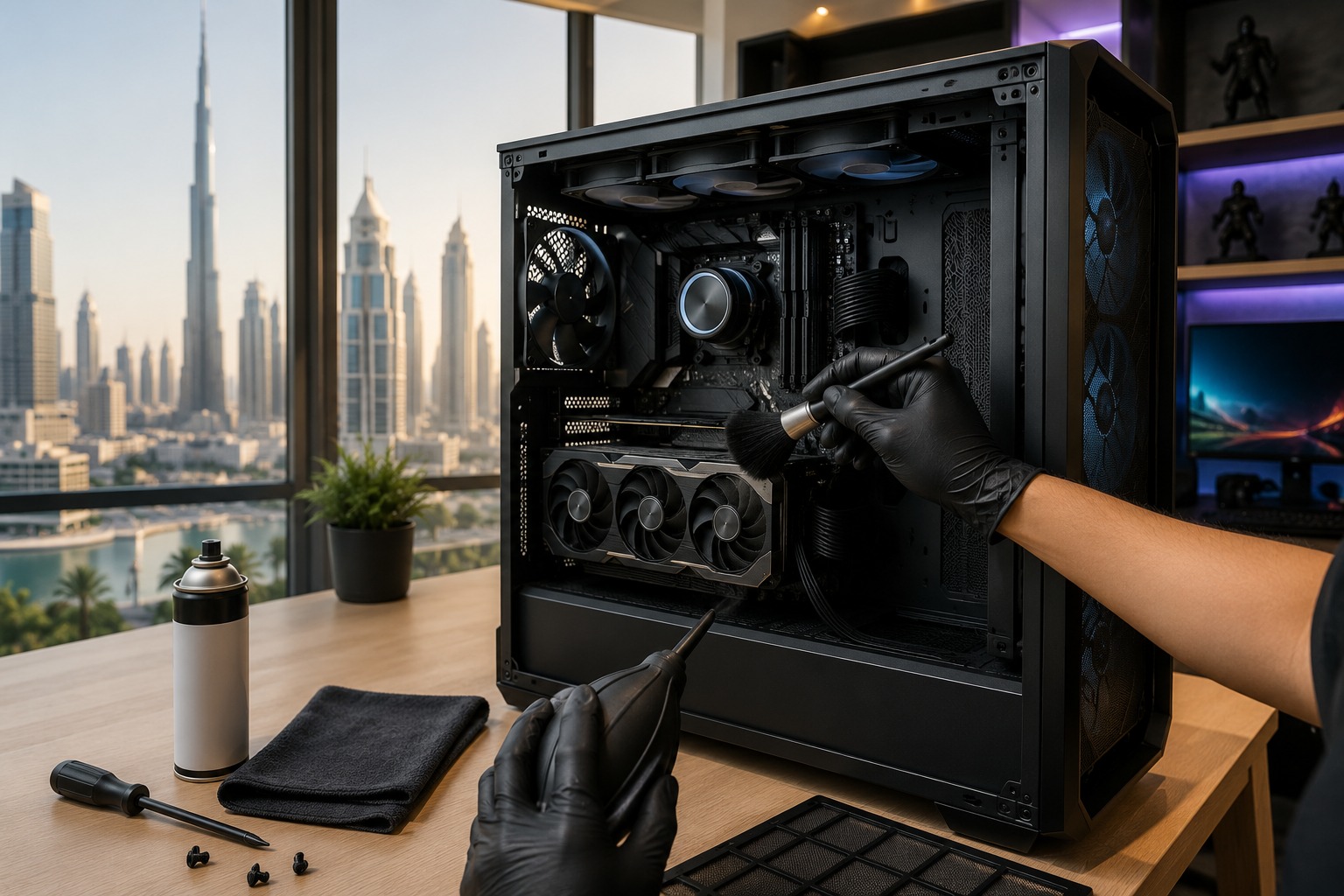
A gaming PC is a serious investment, especially when you have spent money on a powerful GPU, fast processor, quality cooling, and an airflow-focused case. But even the best gaming PC can lose cooling performance when dust starts building up inside.
For gamers in the UAE, PC cleaning deserves extra attention. Fine airborne dust can enter through intake fans, vents, and small openings in your case. Once it settles on dust filters, fans, heatsinks, and radiators, airflow can become restricted and your system may start running hotter and louder.
So, how often should you clean your gaming PC in the UAE?
For most UAE gaming setups, a good rule is to perform a basic cleaning every 1–3 months and a more thorough internal cleaning approximately every 3–6 months. Budget Gamer UAE itself recommends roughly a 90-day cleaning cycle for local conditions, while general PC-maintenance guidance commonly suggests cleaning every three to six months, with more frequent attention in dusty environments.
In this guide, we’ll explain how frequently different parts of your gaming PC should be cleaned, what signs to watch for, and how to reduce dust buildup in the UAE.
Why Gaming PCs Get Dusty Faster in the UAE
Dust is a problem for gaming PCs everywhere, but UAE conditions can make regular maintenance particularly important.
Fine dust can enter your PC whenever its intake fans pull air into the case. Your dust filters capture some of it, but smaller particles can eventually reach your GPU, CPU cooler, motherboard, power-supply vents, and case fans.
Budget Gamer UAE recommends keeping gaming PCs off the floor and using regular compressed-air cleaning because local dust can contribute to restricted airflow and higher temperatures.
Dust Blocks Airflow
Modern gaming PCs rely heavily on airflow.
Your intake fans bring cooler room air into the case, while exhaust fans remove warmer air. When filters and heatsinks become clogged, less air can move through the system.
The result can be:
- Higher CPU temperatures
- Higher GPU temperatures
- Louder fan operation
- Reduced cooling efficiency
- Thermal throttling
- Performance instability during demanding games
Keeping airflow paths clear helps your cooling hardware perform as intended.
Recommended Gaming PC Cleaning Schedule in the UAE
There isn’t one perfect cleaning interval for every gaming PC. Your room, case design, PC placement, usage and surrounding environment all matter.
However, the following schedule is a practical starting point.
Every 2–4 Weeks: Inspect the PC
You don’t need to open your PC every few weeks.
Simply inspect:
- Front intake vents
- Top vents
- Dust filters
- Rear exhaust
- Visible case fans
- Area underneath and around the PC
If the filters already have a visible layer of dust, clean them rather than waiting for your scheduled maintenance.
Every 1–3 Months: Perform a Basic Clean
For most UAE gamers, this should be the main maintenance interval.
Clean or inspect the:
- Front dust filter
- Bottom PSU filter
- Top filter
- Intake fans
- Exhaust fans
- External vents
- Case exterior
Budget Gamer UAE’s existing maintenance guidance recommends cleaning internal components approximately every 90 days under UAE conditions.
If your room is particularly dusty, you may need to do this monthly.
Every 3–6 Months: Perform a Deeper Internal Cleaning
Every few months, inspect the inside of your gaming PC more carefully.
Pay particular attention to:
- GPU fans and heatsink
- CPU air cooler or AIO radiator
- Case fans
- Motherboard surface
- RAM area
- Bottom of the case
- Cable-management areas
- PSU exterior vents
General PC maintenance recommendations commonly put deeper cleaning in the three-to-six-month range, depending on the environment and amount of dust accumulation.
You usually don’t need to completely disassemble your GPU, CPU cooler, or power supply for routine cleaning.
What Happens If You Don’t Clean Your Gaming PC?
A dusty gaming PC doesn’t necessarily fail immediately. Problems tend to develop gradually.
1. Temperatures Can Increase
Dust collects between heatsink fins and on filters, making it more difficult for air to move efficiently.
Your CPU and GPU cooling systems then have to work harder to remove heat.
2. Fans Become Louder
When temperatures rise, your PC automatically increases fan speed.
A gaming PC that was previously quiet may suddenly become noticeably louder during gaming.
Before assuming your fans need replacing, check whether dust is restricting airflow.
3. Thermal Throttling Can Affect Performance
Modern CPUs and GPUs protect themselves against excessive temperatures by reducing operating speeds when necessary.
This is known as thermal throttling.
If cooling performance becomes poor enough, you may experience reduced boost clocks, inconsistent frame rates or stuttering during demanding games.
4. Component Longevity May Suffer
Repeatedly operating components at unnecessarily high temperatures isn’t ideal for long-term reliability.
Cleaning isn’t going to magically double the lifespan of your PC, but maintaining proper airflow and cooling gives your hardware a better operating environment.
Signs Your Gaming PC Needs Cleaning Now
Don’t rely entirely on a calendar.
Your PC may be telling you that it needs attention.
Common warning signs include:
- Visible dust covering intake filters
- Dust collecting on fan blades
- CPU or GPU temperatures increasing compared with normal
- Fans becoming unusually loud
- PC case feeling hotter than usual
- Reduced airflow from exhaust vents
- Gaming performance dropping after extended sessions
- Dust visible on the GPU or CPU cooler
- Fans running at high speeds during relatively light workloads
If several of these symptoms appear together, inspect the system before assuming you need a hardware upgrade.
How to Clean Your Gaming PC Safely
Cleaning a gaming PC isn’t difficult, but sensitive electronic components need to be handled carefully.
Step 1: Shut Down the PC
Completely shut down your computer.
Switch off the PSU and disconnect the power cable along with connected peripherals before opening the case.
Step 2: Move the PC to a Suitable Area
If possible, clean the system somewhere well ventilated.
Avoid blowing accumulated dust around your normal gaming desk.
Step 3: Remove the Dust Filters
Modern gaming cases commonly have removable filters on the:
- Front
- Top
- Bottom
Clean these separately.
Make sure any washable filter is completely dry before reinstalling it.
Step 4: Clean the Fans
Use an appropriate electric air duster or compressed air to remove loose dust.
Hold the fan blades still while blowing air through them rather than allowing the air stream to spin them at extremely high speed.
Step 5: Clean the CPU Cooler
For an air-cooled system, remove dust trapped between the heatsink fins.
For an AIO liquid cooler, pay particular attention to the radiator because its dense fins can collect significant amounts of dust.
Step 6: Clean the Graphics Card
Your GPU is often one of the hottest components in a gaming PC.
Carefully remove loose dust from the GPU fans and accessible heatsink areas without unnecessarily disassembling the card.
Step 7: Inspect the Case
Check the bottom and corners of your PC case, where loose dust often settles.
Use a clean microfiber cloth for appropriate non-sensitive surfaces.
Step 8: Reassemble and Check Temperatures
Once everything is clean and correctly reassembled, start the PC and monitor CPU and GPU temperatures.
If temperatures are noticeably better, restricted airflow was probably contributing to the problem.
For a complete cleaning walkthrough, read Budget Gamer UAE’s How to Clean Your Gaming PC Safely: The Ultimate 2026 UAE Maintenance Guide.
What Should You Avoid When Cleaning a Gaming PC?
Some cleaning shortcuts can create unnecessary risk.
Don’t Use a Household Vacuum Inside the PC
A normal household vacuum isn’t recommended around sensitive internal components because of static-electricity concerns. PC-cleaning guides generally recommend compressed air or an appropriate electric air duster instead.
Don’t Spray Cleaning Liquid Inside
Never spray water, glass cleaner or household cleaning products directly onto your motherboard, GPU or other internal electronics.
Don’t Open Your Power Supply
The exterior vents of the PSU can be cleared carefully, but you should not open the power-supply enclosure simply to clean it.
Power supplies contain components that can retain dangerous electrical charge, and opening one may also affect its warranty.
Don’t Force Components Apart
Routine dust cleaning doesn’t require completely dismantling your gaming PC.
If you’re uncomfortable removing the GPU, CPU cooler or other expensive components, stick to accessible cleaning or have the system professionally serviced.
Where You Put Your Gaming PC Matters
One of the easiest ways to reduce dust buildup is to improve PC placement.
Avoid Keeping Your Gaming PC Directly on the Floor
The floor generally exposes your intake fans to more dust and debris.
This is especially problematic if your PC sits on carpet.
Whenever possible, keep your gaming PC:
- On a sturdy desk
- On a dedicated PC stand
- Elevated from the floor
- Away from heavily dusty areas
- In a well-ventilated, air-conditioned room
Budget Gamer UAE also recommends keeping PCs off the floor as part of managing dust intake in UAE gaming environments.
Use Positive Air Pressure to Reduce Dust
Your fan configuration can also influence how quickly your PC becomes dusty.
A positive-pressure setup means your case has slightly more filtered intake airflow than exhaust airflow.
This can help reduce the amount of unfiltered air being pulled through gaps in the chassis. Budget Gamer UAE recommends positive-pressure configurations and filtered intakes for gaming PCs operating in UAE conditions.
For example, a typical configuration could include:
Front: Intake fans
Bottom: Intake fans where supported
Rear: Exhaust fan
Top: Exhaust fans
The exact configuration depends on your case and cooling hardware.
Does Cleaning Your Gaming PC Improve FPS?
Sometimes—but cleaning isn’t an FPS upgrade by itself.
If your CPU and GPU are already operating at healthy temperatures, removing a small amount of dust probably won’t noticeably increase your frame rate.
However, if severe dust buildup has caused overheating and thermal throttling, restoring proper airflow may allow your hardware to maintain higher boost clocks for longer.
In that situation, you may notice:
- More consistent FPS
- Reduced stuttering
- Lower temperatures
- Quieter operation
- Better sustained performance
So before replacing hardware because your PC suddenly feels slower, checking temperatures and dust buildup is worthwhile.
How Often Should Heavy Gamers Clean Their PC?
If you’re gaming several hours every day, your system moves a large volume of air through its case.
More airflow means more opportunities for airborne dust to reach the filters.
For heavy gaming use in the UAE, consider:
Dust-filter inspection: Every 2–4 weeks
Basic cleaning: Every 1–2 months
Internal cleaning: Around every 3 months
Detailed inspection: Every 6 months
You don’t necessarily need a deep clean every month. The objective is to stop dust from reaching the point where it significantly restricts airflow.
Do Gaming Laptops Need Cleaning Too?
Yes.
Gaming laptops have much smaller cooling systems than desktops, so restricted vents and heatsinks can have a noticeable effect on temperatures.
Keep the external vents clear and avoid gaming with the laptop sitting on a bed, blanket or other soft surface that can restrict airflow.
Opening a gaming laptop for internal cleaning can be more complicated than cleaning a desktop PC, so professional servicing may be preferable if you’re unfamiliar with the hardware.
When Is Cleaning Not Enough?
If you’ve thoroughly cleaned your gaming PC but temperatures remain unusually high, there may be another problem.
Possible causes include:
- Poor case airflow
- Incorrect fan configuration
- Failing case or cooler fan
- CPU cooler mounting problem
- Aging thermal interface material
- Undersized CPU cooler
- Restricted case design
- High room temperature
- Hardware running beyond the cooling system’s capabilities
If your PC is clean and temperatures are healthy but modern games still don’t perform the way you want, the limitation may simply be the hardware.
In that situation, upgrading individual components or moving to a newer gaming PC may make more sense.
UAE Gaming PC Cleaning Schedule at a Glance
| Maintenance Task | Recommended Frequency |
| Check visible dust | Every 2–4 weeks |
| Inspect/clean dust filters | Every 1–2 months |
| Basic PC cleaning | Every 1–3 months |
| Internal cleaning | Every 3–6 months |
| Check CPU/GPU temperatures | Monthly or when performance changes |
| Inspect fans and radiator | Every 3–6 months |
| Professional deep service | When required |
These are guidelines rather than strict rules. A PC in a clean, elevated environment may need less attention, while a floor-mounted system in a dusty room may require much more frequent cleaning.
Final Thoughts:
Keep Your Gaming PC Clean, Cool and Ready to Play
So, how often should you clean your gaming PC in the UAE?
For most gamers, every three months is an excellent target for routine internal maintenance, combined with more frequent dust-filter inspections. This matches Budget Gamer UAE’s existing recommendations for PCs operating in local conditions.
The important thing is consistency.
Keep your PC elevated, maintain clean intake filters, use good airflow, monitor temperatures, and don’t allow thick layers of dust to accumulate on fans and heatsinks. A few minutes of preventative maintenance can help your gaming PC remain cooler, quieter and more reliable.
Looking for a gaming PC designed for UAE gaming conditions? Visit Budget Gamer UAE to explore gaming PCs, builds and expert guides for gamers across the Emirates.
Frequently Asked Questions
How often should I clean my gaming PC in Dubai?
For most gaming PCs in Dubai and elsewhere in the UAE, check filters every month or two and aim for an internal clean roughly every three months. Very dusty environments may require more frequent maintenance.
Can I clean my gaming PC every month?
Yes. Light monthly cleaning is perfectly reasonable, particularly for dust filters and exterior vents. A complete internal deep clean usually isn’t necessary every month.
Is compressed air safe for gaming PCs?
Compressed air is commonly used for PC cleaning when handled correctly. Use controlled bursts and hold fan blades still while cleaning them.
Should I clean my GPU?
Yes. Dust can accumulate on GPU fans and heatsinks. Routine cleaning should focus on accessible areas without unnecessarily dismantling the graphics card.
Why does my gaming PC get dusty so quickly?
High airflow, floor placement, nearby fabric or carpet, open windows and the general amount of airborne dust in the room can all increase buildup.
Should I clean my PC before UAE summer?
Yes. Cleaning your gaming PC before periods of high ambient temperatures is a sensible maintenance habit because your cooling system will already be working harder.
Can dust make my gaming PC overheat?
Yes. Heavy dust buildup can obstruct filters, heatsinks and radiators, reducing airflow and cooling effectiveness. This can contribute to higher temperatures and, in severe cases, thermal throttling.
Is professional PC cleaning necessary?
Not always. Basic dust cleaning can be performed at home if you’re comfortable handling PC hardware safely. Professional help is useful for stubborn contamination, thermal-paste replacement, cooling problems or systems that continue overheating after cleaning.