Blog
New Gaming PC Setup Checklist: The Ultimate 2026 Guide for UAE Gamers

Did you know that even a top-tier RTX 5090 system can lose a chunk of its performance if you don’t account for the UAE’s unique heat during your initial configuration? You’ve just invested in a Beast Gaming System or a Pro Gaming PC, and the excitement is real. But unboxing expensive hardware often comes with a side of anxiety. You don’t want to miss a critical driver update or mess up your Windows 11 settings. That’s where this new gaming pc setup checklist comes in. It’s your roadmap to ensure every component performs exactly as promised.
We agree that nothing is worse than a stuttering frame rate on a brand-new rig. This guide promises to take you from a sealed box to high-performance gaming without missing a single optimization step. You’ll learn how to install the latest NVIDIA Hotfix Driver 610.52, navigate the newest Windows 11 Build 26100.8655, and protect your hardware from regional environmental factors. We’re diving into BIOS tweaks, security hardening, and the essential cooling strategies every UAE gamer needs to know in 2026. Let’s get your system running at maximum FPS while keeping your hardware safe and your OS clean.
Key Takeaways
- Learn the safe way to unbox your rig, including how to handle internal packaging and verify your hardware specs before the first power-on.
- Follow our comprehensive new gaming pc setup checklist to navigate the Windows 11 Out-of-Box Experience while keeping your system clean and fast.
- Maximize your FPS immediately by enabling BIOS features like XMP and installing the latest GPU drivers directly from the manufacturer.
- Protect your investment from the UAE’s environmental factors with expert tips on surge protection and cooling strategies for long-term reliability.
- Discover how to register your warranty and use local performance baselines to ensure your new system is running at its full potential.
Unboxing and Physical Inspection: The First 15 Minutes
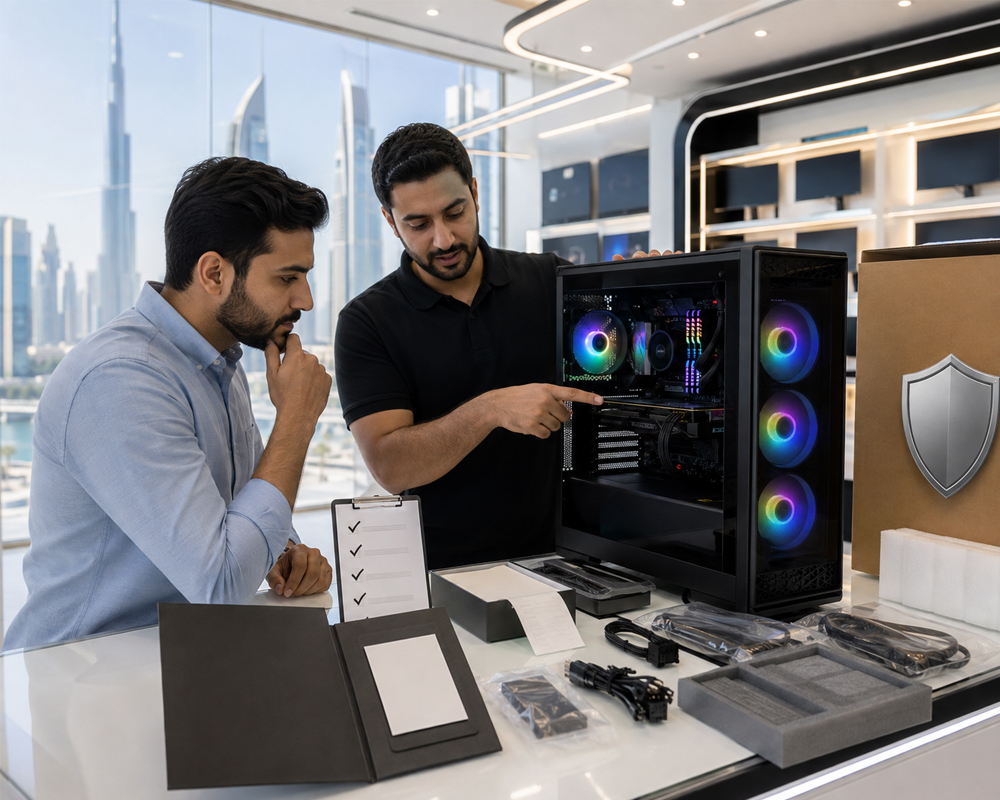
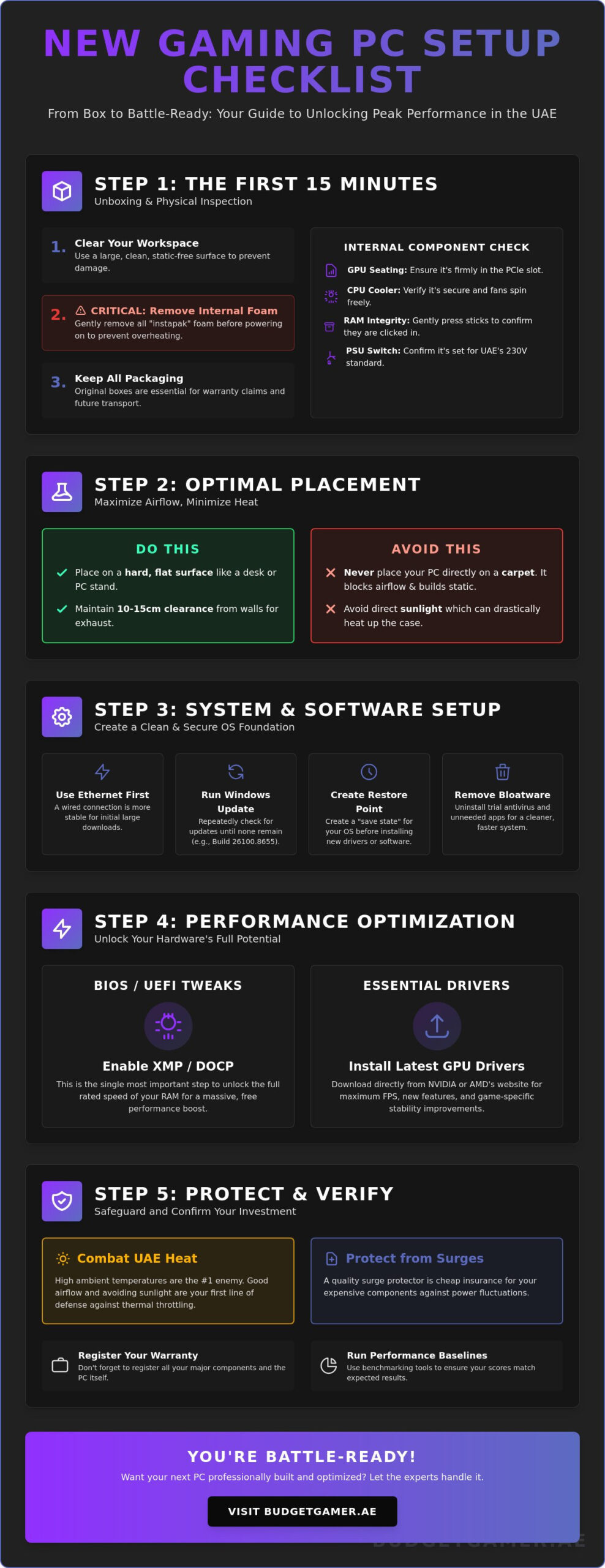
The moment has arrived. You’ve got your brand new rig sitting in its box. Whether it’s The Beast Gaming System or a more compact Budget King PC Build, the first fifteen minutes are critical. This isn’t just about ripping through tape. It’s about ensuring your investment survived the journey to your doorstep. Every new gaming pc setup checklist starts with a methodical unboxing. Start by clearing a large, clean workspace. Carefully slide the tower out of its external carton. Don’t lift it by the plastic wrap; use the chassis itself for a secure grip.
If your PC was shipped with internal “instapak” foam, you must remove it before you even think about the power button. This expanding foam protects essential PC components during shipping, but it will cause an immediate overheat if left inside. Gently open the side panel and lift the foam out. Don’t pull too hard. You want to make sure you aren’t snagging any internal cables or fan headers as the foam comes free.
Don’t throw away those boxes. It’s tempting to clear the clutter, but those original containers and anti-static bags are vital. If you ever need to move house in Dubai or send a part back for a warranty claim, you’ll need that specific packaging to keep things safe. Keep them in a closet or under the bed for at least the duration of your warranty period. This part of the new gaming pc setup checklist is about long-term peace of mind.
Internal Component Verification
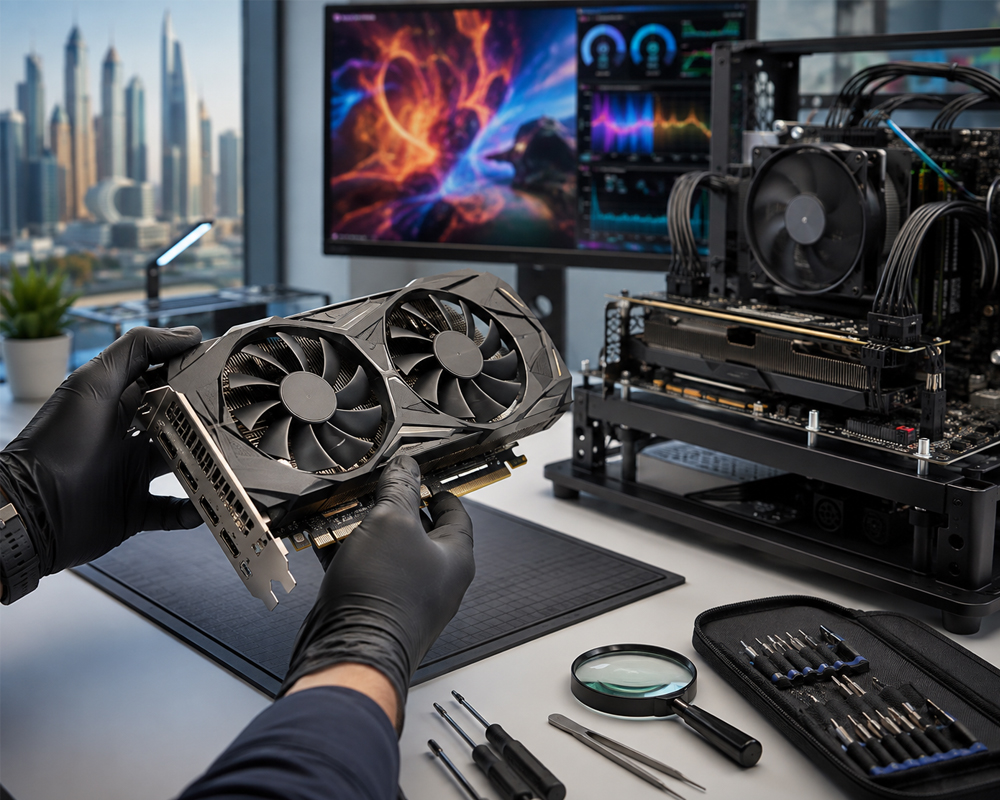
Shipping can be rough. Even with the best packing, parts can shift. Before you plug anything in, perform these quick checks:
- GPU Seating: Visually confirm that your graphics card is seated firmly in the PCIe slot. It shouldn’t be sagging or tilted.
- RAM Integrity: Give your RAM sticks a gentle press to ensure they are clicked into place.
- Cooling: Check the CPU cooler to see if it’s secure; the fans should rotate freely when you give them a light flick.
- Power: While the UAE uses a standard 230V power supply, verify that the PSU switch on the back is set correctly before connecting to your wall outlet.
Choosing the Optimal Placement
Where you put your PC is just as important as what’s inside it. Always place your rig on a hard, flat surface like a desk or a dedicated PC stand. Never put it on a carpet. Carpets are heat traps and breeding grounds for static electricity. They also choke the bottom intake fans of high-end systems like The Pro Gaming PC. Maintain at least 10 to 15cm of clearance from any walls. Your exhaust fans need room to push hot air away from the chassis. In the UAE, heat is your biggest enemy. Avoid placing your setup near unshaded windows where direct sunlight can bake the case.
The Initial Boot: Windows 11 and Security Setup
You’ve verified the hardware. Now, it’s time to push the power button. The first boot is the bridge between your physical components and your gaming experience. This phase of the new gaming pc setup checklist focuses on creating a lean, mean operating system that won’t let you down mid-match. Before you start, plug in an Ethernet cable. While 5G and Wi-Fi are fast in the UAE, a wired connection is far more stable for the massive initial downloads you’re about to trigger.
Windows 11 will guide you through the Out-of-Box Experience (OOBE). If you value privacy, look for the option to set up a local account rather than syncing everything to the cloud. Once you reach the desktop, your first stop is Settings. Navigate to Windows Update. As of June 2026, you should be looking for OS Build 26100.8655. Run the update tool, restart, and run it again. Do this until the system confirms there are no more updates available. This ensures all security patches and essential framework files are ready for your games.
Before you install a single game launcher, create a system restore point. Type “Create a restore point” into the Windows search bar and follow the prompts. Think of this as a save state for your entire PC. If a future driver installation or software tweak causes a blue screen, you can revert to this clean state in seconds. It’s a small step that provides massive peace of mind for anyone owning a high-performance system like The Pro Gaming PC.
Cleaning Up Bloatware
Trial antivirus software and manufacturer “helper” apps often act like digital anchors. They eat up CPU cycles and RAM. Go to “Add or Remove Programs” and uninstall any trial software you didn’t specifically ask for. Next, open Task Manager by hitting Ctrl+Shift+Esc. Click the Startup tab and disable any apps that don’t need to run the moment you turn on the PC. This keeps your boot times fast and your system resources dedicated to your frame rate.
Essential Security Configuration
Modern gaming doesn’t require bulky third-party security suites. Windows Defender is highly optimized for 2026 and provides excellent protection without the performance hit. Ensure it’s active and the virus definitions are current. Set up a Windows Hello PIN or biometric login for secure, instant access. While you’re hardening your software, remember that physical environmental factors still matter. Software efficiency plays a role in protecting electronics from heat; a clean OS avoids the background “zombie” processes that can unnecessarily spike your temperatures in the UAE summer.
Performance Optimization: Unlocking Your Hardware Potential
You’ve cleared the initial boot and scrubbed the bloatware. Now, it’s time to actually get the performance you paid for. Many gamers leave up to 20% of their potential power on the table because they skip the optimization phase of their new gaming pc setup checklist. Raw hardware is useless if the software doesn’t know how to drive it. Let’s start with the foundation: drivers. Don’t rely on Windows Update for your graphics. Head straight to the source. As of June 2026, you should be grabbing the GeForce Hotfix Driver 610.52 or Radeon Adrenalin 26.6.1. These updates contain critical day-one optimizations for the latest titles that basic Windows drivers simply don’t have.
Next, we’re going into the BIOS. Restart your PC and tap Delete or F2. Look for XMP (Intel) or DOCP (AMD). By default, high-speed RAM often runs at basic “safe” speeds. Enabling this profile tells your motherboard to use the full frequency of your memory modules. It’s a five-second tweak that results in a massive boost to your minimum frame rates. While you’re at it, check your Windows Power Plan. Search for “Choose a power plan” and select High Performance. This prevents your CPU from downclocking during intense gaming sessions. It’s a standard part of any professional new computer setup checklist designed for high-performance rigs.
Don’t forget the dedicated gaming toggles in Windows 11. Go to Settings, then Gaming. Ensure Game Mode is toggled to ON. This tells Windows to prioritize your active game over background tasks. Also, navigate to System, then Display, and select Graphics. Enable Hardware-Accelerated GPU Scheduling. This offloads specific tasks to your GPU’s memory, reducing latency and improving overall responsiveness in modern 2026 titles. These small changes ensure your Beast Gaming System is actually behaving like one.
Maximizing Your Display Performance
Your GPU might be pushing 144 FPS, but if your monitor is stuck at 60Hz, you’ll never see it. Right-click your desktop, go to Display Settings, then Advanced Display. Manually select the highest refresh rate available for your screen. If you’re unsure if your current screen can handle the output of a Pro Gaming PC, check our Gaming Monitor Guide 2026 to find a better match. Finally, open your GPU control panel and enable G-Sync or FreeSync. This tech synchronizes your monitor’s refresh rate with your GPU’s output, eliminating screen tearing without the input lag of traditional V-Sync.
The Essential Software Toolkit
A clean system needs the right tools. Download 7-Zip for handling compressed files and HWMonitor to keep an eye on your vitals. In the UAE, monitoring temperatures is non-negotiable. Once your launchers like Steam and Epic are installed, run a quick benchmark like 3DMark or Cinebench. This confirms your system is hitting the scores it should. If your numbers are low, double-check your new gaming pc setup checklist to see if a BIOS setting or driver was missed during the rush to play.
UAE Environmental Setup: Heat and Power Protection
Building or buying a high-performance rig is only half the battle. In the UAE, the physical environment is often your biggest performance bottleneck. Your new gaming pc setup checklist must account for the reality of desert climates and local power grids. High ambient temperatures and occasional power fluctuations can turn a Beast Gaming System into a very expensive paperweight if you aren’t careful. Let’s look at how to shield your hardware from the elements effectively.
First, don’t plug your PC directly into the wall. Invest in a high-quality surge protector at the very least. For high-end builds, an Uninterruptible Power Supply (UPS) is practically mandatory. A UPS doesn’t just give you time to save your game during a power cut; it cleans the incoming power signal. This prevents “dirty power” from stressing your sensitive capacitors over time. If you’ve invested in a Pro Gaming PC, protecting it with a dedicated UPS is the smartest move you can make for long-term reliability.
Thermal management is the next priority. Standard fan curves are often designed for cooler European or North American climates. In the UAE, you need to be more aggressive. Enter your BIOS and set a custom fan curve that ramps up earlier. You want those fans spinning faster at lower temperatures to stay ahead of the heat soak. Monitor your idle and load temperatures using HWMonitor during your first few hours of heavy gaming. If your GPU is idling above 45°C or hitting 85°C under load, your airflow needs immediate adjustment.
Managing the UAE Summer Heat
The summer months are brutal on electronics. Ensure your AC is functioning well in your gaming room. If the room feels warm to you, it’s definitely too hot for your PC. Dust is also more prevalent here. Make it a habit to clean your dust filters every 4 to 6 weeks. A clogged filter can raise internal temps by 5 to 10 degrees in a matter of days. Finally, avoid overclocking your components unless you have an extreme liquid cooling solution. The marginal FPS gain isn’t worth the risk of thermal throttling when the ambient temperature is already high.
Power Stability for Your Rig
Before you finalize your setup, verify that your wall socket is properly grounded. Older buildings can sometimes have inconsistent grounding, which leads to static buildup or component damage. Avoid running multiple high-draw appliances, like a space heater or a high-wattage AC unit, on the same circuit as your PC. This prevents circuit trips during peak gaming moments. Using a UPS ensures that even if a rare local power cut occurs, your data and hardware remain safe from sudden shutdowns. This is a critical final step in your new gaming pc setup checklist.
Verifying Your Build with Budget Gamer UAE
You’ve checked the hardware, scrubbed the bloatware, and optimized your settings. The heavy lifting is done. But how do you know if your rig is truly performing at its peak? The final step of your new gaming pc setup checklist is verification. It’s time to compare your real-world results against local benchmarks to ensure your investment is delivering every frame you paid for. Don’t just assume it’s fast. Prove it.
Start by checking your system against our Pre Built PC UAE Guide. We’ve documented baseline specs for the latest 2026 hardware, including the RTX 50-series GPUs. If your Ultra High-End PC or Beast Gaming System is trailing behind these numbers, something is wrong. It could be a simple BIOS setting or a background process we missed. If your “Budget King” build isn’t hitting its expected 1080p targets, don’t settle for less. Consult our support team immediately. We’re here to ensure your hardware hits its stride from day one.
Peace of mind is just as important as high FPS. Register your Budget Gamer UAE warranty right now. In the rare event that a component fails due to the intense UAE summer heat or a power surge, you want that protection active. Beyond the hardware, join our local community. Gaming in the Middle East comes with unique challenges, like finding the best UAE servers for low ping. Our community shares specific optimization tips for titles like Valorant and Warzone to keep your latency as low as your frame rates are high.
Comparing Your Results
Use our performance tiers to see if your PC Build UAE is performing as intended. We categorize builds by resolution and refresh rate targets. Share your 3DMark or Cinebench results with us. We offer a free setup health check for our customers to catch configuration errors early. If you find you’ve outgrown your current specs later in 2026, we can explore upgrade paths together. Staying ahead of the curve is easier when you have a local expert in your corner.
Next Steps: Get Gaming
The work is finished. Load up your first game and enjoy the smooth, stutter-free performance of a professionally tuned system. You’ve followed the new gaming pc setup checklist and built a fortress against heat and lag. Check our blog for the best budget-friendly peripherals to complete your desk setup. If you run into any issues or want to push your performance even further, contact Budget Gamer UAE for expert support or custom upgrades. Welcome to the elite tier of UAE gaming.
Ready to Dominate the Digital Battlefield?
You’ve done the heavy lifting. Your rig is unboxed, updated, and optimized for the unique environmental challenges of the UAE. Remember that consistent heat management and clean power are just as vital as your latest GPU driver version. By sticking to this new gaming pc setup checklist, you’ve built a high-performance system ready for the most demanding 2026 titles. You won’t have to worry about thermal throttling or sudden crashes when the match gets intense.
If you’re still looking for the perfect machine or want to push your current performance even higher, we’re here to help. We offer tiered systems for every budget and provide UAE-based expert support to keep you in the game. You can even grab your dream rig today with interest-free installments with Tabby UAE. It’s about making professional-level performance accessible to every gamer in the region. We believe everyone deserves a top-tier experience without the elite price tag.
Level up your setup with Budget Gamer UAE and experience the speed you deserve. Your journey from unboxing to victory starts now. See you on the server!
Frequently Asked Questions
Do I need to install an antivirus on my new gaming PC?
Windows Defender is all you need for a clean, high-performance rig in 2026. It’s built directly into the OS and provides excellent protection without the massive performance hit of third-party suites. Avoid trial software like Norton or McAfee that often comes pre-installed on new systems. These apps eat up CPU cycles and can cause in-game stuttering. Stick with the built-in tools to keep your frame rates high and your system secure.
Should I keep my gaming PC on the floor or on my desk?
Keep your rig on your desk or a hard, elevated stand to ensure the best airflow. Placing a PC on the floor, especially on a carpet, is a major risk in the UAE. Dust is more prevalent at floor level, and carpets completely choke the intake fans for your power supply. Keeping it elevated helps your system stay cooler and significantly reduces the amount of cleaning your dust filters will need over time.
How often should I update my graphics drivers?
Check for updates at least once a month or whenever a major new game launches. Manufacturers release specific “Game Ready” drivers to optimize performance for the latest titles. As of June 2026, you should be running NVIDIA GeForce Hotfix Driver 610.52 or AMD Radeon 26.6.1 for the best results. Staying current ensures you aren’t missing out on critical stability fixes and FPS boosts that are essential for any new gaming pc setup checklist.
Is it safe to leave my gaming PC on 24/7 in the UAE?
It’s generally safe if your room has consistent AC, but we don’t recommend it. UAE ambient temperatures can rise quickly if your cooling system cycles off, leading to unnecessary heat soak even when the PC is idle. Leaving a Pro Gaming PC on 24/7 also increases its exposure to potential power fluctuations. Turning the system off when you aren’t playing saves energy and extends the lifespan of your expensive cooling fans.
What is the first game I should download to test my new PC?
Download a graphically intense title like Cyberpunk 2077 or a modern 2026 equivalent to push your hardware. These games utilize heavy ray tracing and upscaling tech, making them perfect for testing a Beast Gaming System. If you want hard data, run a 3DMark benchmark. It provides a clear score you can compare against other users with similar specs. This confirms your rig is performing exactly as it should right out of the box.
Do I need to change any BIOS settings on a pre-built PC?
Yes, you should always check that XMP or DOCP is enabled in the BIOS. Even professional pre-builts can sometimes have these settings reset during shipping or after a BIOS update. If this isn’t toggled on, your RAM will run at basic “safe” speeds rather than the high-frequency performance you paid for. This is a critical step in your new gaming pc setup checklist to ensure your memory isn’t bottlenecking your high-end CPU.
How do I check if my monitor is actually running at 144Hz?
Right-click your desktop, go to Display Settings, and select Advanced Display. Under the refresh rate dropdown, ensure 144Hz or your monitor’s maximum speed is selected. Many gamers stay on the default 60Hz by mistake and never realize they aren’t seeing the full potential of their GPU. Verifying this setting ensures that the smoothness of your display actually matches the high frame rates your Ultra High-End PC is producing.
What should I do if my new PC is making a loud clicking noise?
Shut the system down immediately and check if a stray cable is hitting a fan blade. This is the most common cause of clicking and is a quick, easy fix once identified. If all fans are clear, the noise could indicate an issue with a mechanical hard drive or the pump in a liquid cooler. Don’t ignore it. If the sound continues after a physical check, contact our support team to diagnose the issue before any damage occurs.