
Blog
How to Build a Quiet Gaming PC Without Sacrificing Performance

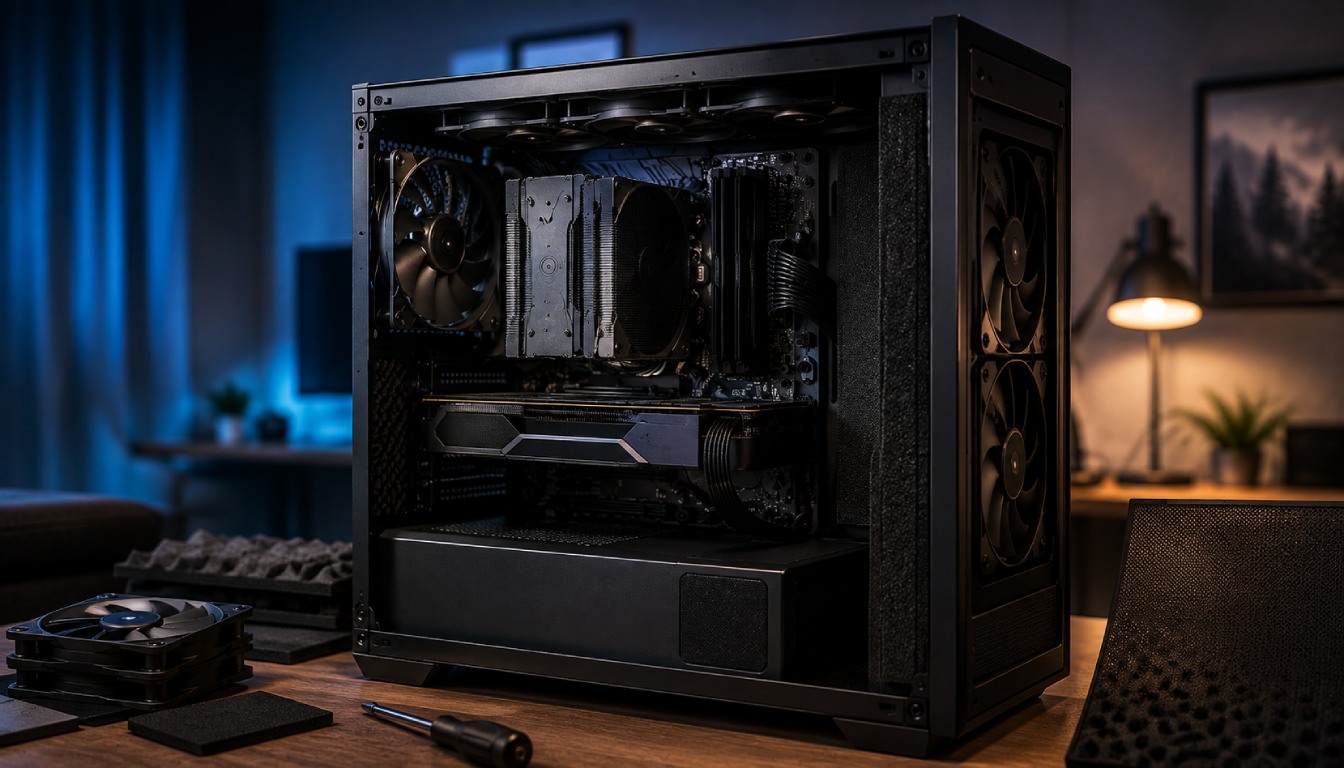
A powerful gaming PC does not need to sound like a jet engine every time you launch a demanding game. With the right components, airflow design, cooling setup, and fan tuning, you can build a quiet gaming PC that delivers excellent FPS while keeping noise under control.
This is particularly important for gamers in the UAE. Higher ambient temperatures can make PC fans work harder, which increases system noise. The goal, therefore, is not simply to slow every fan down. A properly designed quiet gaming PC removes heat efficiently enough that the fans do not need to run at maximum speed.
In this guide, Budget Gamer UAE explains how to build a quieter gaming PC without sacrificing the performance you paid for.
Why Do Gaming PCs Become So Loud?
Before making a PC quieter, you need to understand where the noise comes from.
The most common sources include:
- CPU cooler fans
- Graphics card fans
- Case fans
- Power supply fan
- AIO liquid-cooling pump
- Mechanical hard drives
- Restricted airflow
- Dust buildup
- Aggressive fan curves
- Coil whine from certain components
High temperatures can make the problem worse. When your CPU or GPU gets hotter, its cooling system automatically increases fan speed.
That means the smartest approach to building a silent gaming PC is often better cooling rather than less cooling.
1. Start With an Airflow-Focused PC Case
Your PC case plays a major role in both cooling and acoustics.
It may seem logical to buy a completely sealed case to block noise, but restricting airflow can have the opposite effect. Components become hotter, forcing fans to spin faster.
Instead, look for a case with:
- Mesh front ventilation
- Large intake areas
- Multiple 120mm or 140mm fan mounts
- Good GPU ventilation
- Dust filters
- Clean cable-management space
- Enough clearance for a large CPU cooler
A well-ventilated case allows your fans to move the required amount of air at lower RPM.
If you’re planning an entirely new system, our Gaming Computer Guide 2026 explains how to balance components, cooling and overall gaming performance.
2. Use Larger, High-Quality Case Fans
One of the easiest ways to reduce PC noise is to improve your case fans.
Generally, a larger fan can move a useful amount of air while operating at a lower RPM than a smaller fan. For this reason, 140mm fans can be an excellent choice when your case supports them.
Instead of filling every available fan position, concentrate on creating efficient airflow.
A typical configuration might include:
- Two or three front intake fans
- One rear exhaust fan
- One or two top exhaust fans
You don’t necessarily need every fan running at high speed.
The objective is to establish a smooth path where cooler air enters the system, travels across heat-producing components and exits efficiently.
3. Choose the Right CPU Cooler
The CPU cooler is one of the most important decisions in a quiet PC build.
Small stock coolers often have to spin their fans aggressively under gaming or productivity workloads.
A large tower air cooler provides considerably more heatsink surface area. That means heat can be dissipated effectively while the fan operates more slowly.
Air Cooling
Quality tower air coolers are attractive for quiet builds because they offer:
- Large heatsinks
- Low-RPM fan operation
- No pump noise
- Simple maintenance
- Excellent reliability
Liquid Cooling
A good AIO liquid cooler can also provide excellent thermal performance, particularly with high-power processors.
However, remember that an AIO introduces another potential noise source: the pump.
For many mid-range gaming systems, a premium tower air cooler can therefore provide an excellent combination of performance, reliability and low noise.
4. Don’t Overspend on the CPU
This may sound unusual, but component selection directly affects noise.
If your gaming workload does not require an extremely power-hungry flagship CPU, choosing a more efficient processor can significantly reduce the amount of heat your cooler must remove.
Less heat means:
Lower temperatures → lower fan speeds → less noise.
The same principle applies throughout your PC.
A balanced machine can sometimes be quieter and more practical than a system filled with flagship components that generate additional heat without providing meaningful improvements in your actual games.
For help choosing a balanced configuration, read our Best Value for Money Gaming PC UAE Guide.
5. Choose Your Graphics Card Carefully
During gaming, the GPU is frequently one of the loudest components in the computer.
Two graphics cards using the same GPU chip can have noticeably different cooling designs.
When comparing cards, consider:
- Heatsink size
- Number and size of fans
- GPU power consumption
- Zero-RPM mode
- Cooler thickness
- Thermal performance
- Fan noise under load
A larger triple-fan cooler can often maintain good temperatures without requiring extremely high fan speeds.
Look for Zero-RPM Mode
Many modern graphics cards include a fan-stop or zero-RPM feature.
When the GPU is cool enough, such as during browsing or office work, the fans stop completely.
This can make your gaming PC almost silent during light use.
6. Consider GPU Undervolting
Undervolting is one of the most effective techniques for enthusiasts who want to reduce gaming-PC temperatures and noise.
Instead of increasing voltage to chase maximum benchmark scores, undervolting aims to operate the GPU at a lower voltage while maintaining similar clock speeds.
A successful undervolt can potentially deliver:
- Lower GPU power consumption
- Lower temperatures
- Reduced fan speed
- Lower system noise
- Similar gaming performance
Results vary between individual GPUs, so stability testing is essential after making adjustments.
Avoid making aggressive voltage changes without understanding the settings. Small, carefully tested adjustments are preferable.
7. Configure Custom Fan Curves
Installing expensive cooling hardware will not help much if every fan is configured to run aggressively.
Most modern motherboards allow you to customize fan curves through the BIOS or motherboard software.
Instead of having fans immediately jump to high RPM whenever the CPU temperature changes slightly, create a smoother curve.
For example, you can configure fans to remain relatively slow during:
- Web browsing
- Streaming
- Office applications
- Light gaming
They can then gradually increase speed when temperatures rise during demanding workloads.
The exact curve depends on your hardware and room temperature, so monitor your temperatures carefully rather than copying another PC’s settings blindly.
8. Don’t Ignore Your Power Supply
The PSU can also contribute to overall PC noise.
Choose a quality power supply with sufficient capacity for your system rather than running a low-capacity unit near its limit.
Many modern PSUs include semi-passive modes. Under lighter loads, their fan can remain completely switched off.
When choosing your PSU, prioritize:
- Appropriate wattage
- High efficiency
- Reputable build quality
- Quiet fan design
- Semi-passive operation where available
Buying a massively oversized PSU is unnecessary, but giving the system reasonable power headroom can help the unit operate comfortably.
9. Use SSD Storage Instead of Mechanical Drives
Mechanical hard drives contain spinning platters and moving components.
They can produce:
- Vibrations
- Clicking sounds
- Spinning noise
Modern NVMe and SATA SSDs have no moving parts and are silent during operation.
For a modern quiet gaming PC, an NVMe SSD makes sense for Windows, applications and frequently played games.
It also improves loading and system responsiveness.
10. Improve Cable Management
Cable management isn’t purely cosmetic.
Large bundles of cables positioned directly in front of fans can obstruct airflow.
Cleaner cable routing allows air to travel more efficiently through the case, helping your cooling system maintain lower temperatures without unnecessarily increasing fan speeds.
Route cables behind the motherboard tray whenever possible and keep the main airflow path between your intake fans, CPU cooler and GPU unobstructed.
11. Keep Your PC Clean
Even the quietest PC can become loud after enough dust accumulates.
Dust can cover:
- Fan blades
- CPU heatsinks
- GPU heatsinks
- Radiators
- Dust filters
- PSU ventilation areas
As cooling performance deteriorates, temperatures rise and the system compensates by increasing fan speeds.
This issue deserves particular attention in dusty environments.
Our Gaming PC Cleaning Guide explains how to safely remove dust and maintain your PC’s cooling performance.
12. Use Positive Air Pressure
A slight positive-pressure configuration can be useful for keeping a gaming PC cleaner.
Positive pressure means your intake fans collectively bring slightly more filtered air into the case than the exhaust fans remove.
The excess air escapes through gaps in the chassis rather than allowing unfiltered air to be drawn inward through those openings.
Combined with proper dust filters, this can help reduce internal dust accumulation.
However, airflow balance still matters. Don’t simply run all intake fans at maximum speed.
13. Control Vibrations
Not every unwanted sound comes directly from a fan.
Vibrations can travel through the case and make a relatively quiet component sound much louder.
Check that:
- Case panels are securely installed
- Fans are properly mounted
- Screws aren’t loose
- The PC sits on a stable surface
- Cables aren’t touching fan blades
Rubber fan mounts or anti-vibration pads can also help in certain builds.
14. Monitor Temperatures Before Reducing Fan Speeds
Silence should never come at the expense of safe operating temperatures.
After adjusting your cooling setup, monitor:
- CPU temperature
- GPU temperature
- GPU hotspot temperature
- Fan RPM
- Clock speeds
Test the computer under realistic gaming workloads.
If reducing fan speeds causes temperatures to increase excessively or results in thermal throttling, revise the fan curve.
The target is not a completely silent PC at any cost. The target is the best balance between acoustics, temperatures and gaming performance.
Quiet Gaming PC Build Strategy for the UAE
Building a quiet gaming PC in the UAE requires extra attention to cooling because room temperature has a direct impact on how effectively your system can dissipate heat.
A sensible configuration should prioritize:
| Component | Quiet-PC Recommendation |
| Case | High-airflow mesh design |
| CPU Cooler | Large tower cooler or quality AIO |
| Case Fans | Large PWM fans |
| GPU | Efficient model with large cooler |
| Storage | NVMe SSD |
| PSU | Efficient PSU with semi-passive mode |
| Airflow | Slight positive pressure |
| Fan Control | Customized PWM curves |
| Maintenance | Regular dust cleaning |
The key principle is straightforward: efficient cooling allows slower fans.
Trying to silence an overheating PC by simply limiting fan speeds is not a good solution.
Quiet PC vs High-Performance PC: Do You Have to Choose?
No.
With modern hardware and proper component selection, a gaming PC can be both fast and quiet.
The biggest mistake is spending almost the entire budget on CPU and GPU performance and treating the case, cooler and fans as afterthoughts.
Instead, consider cooling part of your performance budget.
A CPU or GPU that maintains its intended boost clocks at controlled temperatures is far more useful than powerful hardware trapped inside a poorly ventilated case.
If you’re still deciding whether to assemble the machine yourself or purchase a professionally configured system, see our DIY vs Prebuilt Gaming PC UAE Guide.
Build a Quiet Gaming PC With Budget Gamer UAE
A quiet gaming PC is not about sacrificing FPS. It is about making every component work more efficiently.
Choose an airflow-focused case, quality cooling, large PWM fans, an efficient GPU and CPU, SSD storage and a properly sized PSU. Then optimize your fan curves and keep the system clean.
The result can be a PC that remains quiet during everyday use and controlled during demanding gaming sessions while still delivering the performance you expect.
Budget Gamer UAE offers pre-built systems as well as customizable PC builds with thermal optimization, genuine components, warranty coverage and UAE delivery.
Explore Budget Gamer UAE to compare gaming PCs, components and custom-build options.
Frequently Asked Questions
Can a powerful gaming PC actually be quiet?
Yes. High-performance PCs can operate quietly when they use efficient components, capable heatsinks, large fans, good airflow and properly configured fan curves.
Are more PC fans always better?
No. Fan quality, positioning and airflow balance matter more than simply installing the maximum number of fans.
Is liquid cooling quieter than air cooling?
Not automatically. A good AIO can be quiet, but it also contains a pump. A high-quality tower air cooler can be extremely quiet and eliminates pump noise.
Does undervolting reduce gaming performance?
A carefully tuned GPU undervolt can reduce power consumption and heat while retaining similar real-world gaming performance. Results depend on the individual GPU and settings, and stability testing is essential.
Why does my gaming PC get louder over time?
Dust accumulation, deteriorating airflow, changing ambient temperatures and more demanding workloads can all cause fans to operate faster.
What is the best way to make a gaming PC quieter?
Start with airflow and temperatures. Clean the system, optimize fan curves, improve the CPU cooler and case fans, check GPU temperatures and eliminate vibration before considering major hardware replacements.