
Blog
Gaming PC Maintenance Checklist Keep Your System Fast and Reliable

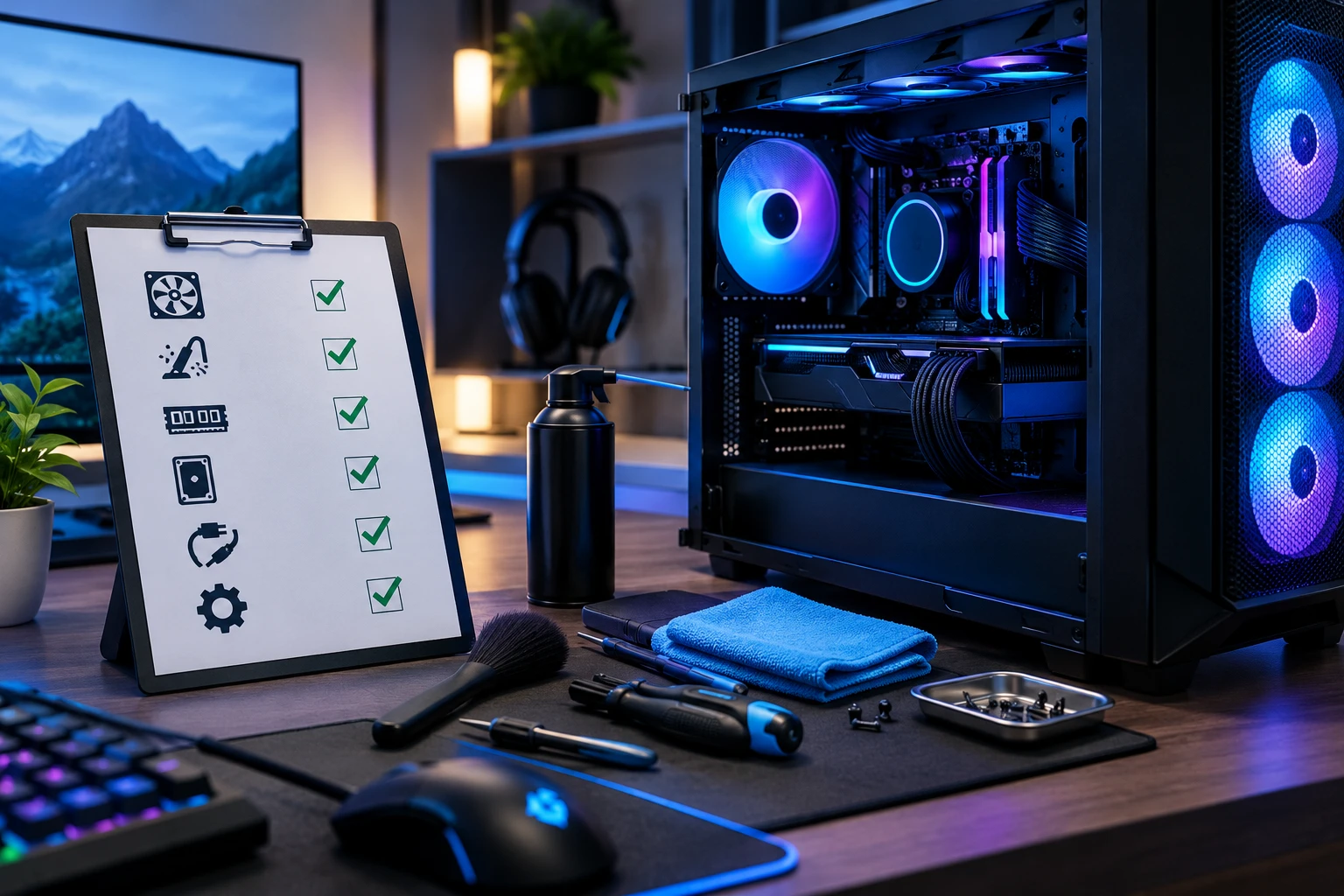
A gaming PC is a powerful investment built to deliver smooth gameplay, high frame rates, and reliable performance. However, even the best gaming computers can lose speed over time if they are not maintained properly. Dust buildup, outdated drivers, overheating components, and storage issues can reduce performance and affect your gaming experience.
Regular maintenance helps your gaming PC stay cooler, run faster, and last longer. Whether you own a pre-built gaming PC or a custom-built setup, following a proper maintenance routine can prevent performance problems and expensive repairs.
In this guide, we will cover the essential gaming PC maintenance checklist every gamer should follow to keep their system running at its best.
Why Gaming PC Maintenance Is Important
Gaming PCs handle demanding tasks that push your CPU, GPU, RAM, and cooling system to their limits. During long gaming sessions, components generate heat, and without proper care, excessive temperatures can cause thermal throttling, reduced FPS, and hardware damage.
Regular maintenance helps you:
- Improve gaming performance
- Maintain stable FPS during gameplay
- Reduce overheating problems
- Extend component lifespan
- Prevent unexpected system crashes
- Keep your PC running like new
A clean and optimized system allows your hardware to perform at its full potential.
Gaming PC Maintenance Checklist
1. Clean Dust From Your Gaming PC Regularly
Dust is one of the biggest enemies of gaming computers. Over time, dust collects inside the case, blocks airflow, and reduces cooling efficiency.
Clean these areas regularly:
- PC case filters
- GPU fans
- CPU cooler
- Case fans
- Power supply ventilation
- Motherboard surface
For better airflow, clean your PC every few months, especially if your gaming setup is placed in a dusty environment. Regular fan and filter cleaning helps maintain proper temperatures and system reliability.
Tip: Always turn off your PC and disconnect the power before cleaning.
2. Monitor CPU and GPU Temperatures
High temperatures can reduce gaming performance and shorten hardware lifespan.
Keep an eye on:
- CPU temperature
- GPU temperature
- Fan speed
- System airflow
If your GPU or CPU temperatures are consistently high, check:
- Dust buildup
- Cooling fan performance
- Thermal paste condition
- Case airflow
Temperature monitoring tools can help identify cooling issues before they become serious problems.
3. Update Graphics Drivers Regularly
Your graphics card drivers directly affect gaming performance and compatibility.
Updating GPU drivers helps with:
- Better game optimization
- Improved FPS performance
- Bug fixes
- New game support
Always download graphics drivers from official sources and keep your NVIDIA or AMD software updated.
4. Keep Your Windows and Software Updated
Operating system updates improve:
- Security
- Stability
- Hardware compatibility
- Performance
Make sure your:
- Windows version
- Gaming launchers
- Motherboard drivers
- Audio drivers
are updated regularly.
5. Optimize Your Storage Space
A full storage drive can slow down your gaming PC. Keep your SSD or HDD organized by removing unnecessary files.
Maintenance tasks include:
- Delete unused games
- Remove temporary files
- Clear downloads folder
- Keep enough free SSD space
- Check storage health
If you use an SSD as your main gaming drive, monitoring its health helps prevent unexpected failures.
For gamers planning a new setup, choosing the right storage is also important. You can learn more about choosing components in our guide about Essential Components Every Gaming PC Needs.
6. Check Cooling System Performance
A powerful gaming PC needs efficient cooling to maintain performance.
Inspect:
- CPU cooler
- Liquid cooling pump (if installed)
- Case fans
- Thermal paste condition
If your PC becomes louder than usual or temperatures increase, your cooling system may need attention.
Replacing old thermal paste can improve heat transfer between your processor and cooler.
7. Manage Background Applications
Too many applications running in the background can consume system resources.
Check:
- Startup programs
- Background apps
- Unnecessary software
Disable programs you do not need during gaming sessions to free up:
- CPU resources
- RAM usage
- Storage activity
This can help improve overall gaming responsiveness.
8. Maintain Proper Cable Management
Good cable management is not only about appearance. Properly arranged cables improve airflow inside your PC case.
Benefits include:
- Better cooling
- Easier cleaning
- Improved component accessibility
- Cleaner gaming setup appearance
When upgrading your system, organized cables also make installation easier.
9. Scan for Viruses and Malware
Malware can slow down your gaming PC and affect system performance.
Perform regular security checks and avoid:
- Unknown downloads
- Suspicious software
- Unsafe game mods
Keeping your system secure helps maintain consistent performance.
10. Check Hardware Health Before Problems Appear
Preventive checks can save you from unexpected hardware failures.
Monitor:
- SSD health
- RAM stability
- GPU performance
- Power supply condition
- Cooling performance
Replacing weak components early can prevent damage to other expensive hardware.
Monthly Gaming PC Maintenance Routine
Follow this simple monthly checklist:
✓ Clean dust filters
✓ Update drivers
✓ Remove unnecessary files
✓ Check temperatures
✓ Review startup applications
✓ Scan for malware
✓ Check storage health
A few minutes of maintenance can keep your gaming PC performing smoothly for years.
Upgrade Your Gaming PC When Needed
Maintenance keeps your system healthy, but eventually, upgrades can improve your gaming experience.
Consider upgrading:
- RAM for smoother multitasking
- SSD for faster loading times
- GPU for better graphics performance
- Cooling system for improved temperatures
If you are planning a new build or upgrade, check our guide on Best Gaming PC Build Guide for Beginners to understand the important hardware choices.
Keep Your Gaming PC Ready for Every Battle
A gaming PC is more than just hardware — it is the foundation of your gaming experience. Regular cleaning, software updates, temperature monitoring, and proper optimization help your system deliver consistent performance.
Whether you play competitive esports titles or explore demanding AAA games, following this gaming PC maintenance checklist ensures your setup stays fast, reliable, and ready for every challenge.
Looking for a powerful gaming setup? Explore high-performance gaming PCs in UAE from Budget Gamer and build a system designed for your gaming needs.