Blog
How to Test a Used Graphics Card Before Buying in the UAE

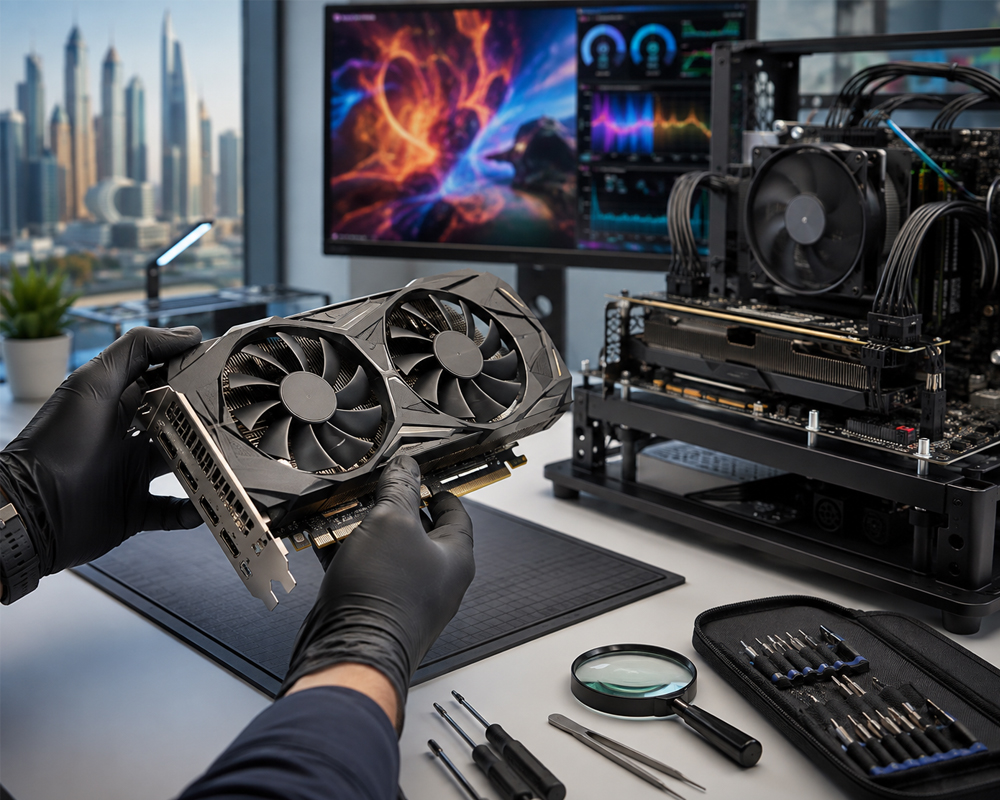
Buying a used graphics card can be an excellent way to build or upgrade a gaming PC without spending too much. In the UAE, the second-hand GPU market is active across online marketplaces, gaming communities, computer shops, and local sellers. However, a low price does not always mean a good deal.
A graphics card may look clean from the outside but still suffer from overheating, unstable memory, damaged fans, mining-related wear, or previous repairs. Before handing over your money, you should test the GPU properly and confirm that it performs as expected.
This guide explains how to test a used graphics card before buying in the UAE, helping you avoid faulty hardware and choose a reliable GPU for your gaming PC.
1. Research the Graphics Card Before Meeting the Seller
Start by checking the exact model, specifications, and normal performance of the graphics card. Different versions of the same GPU may have different cooling systems, power requirements, clock speeds, and warranty conditions.
Research the following details:
- Exact brand and model
- Amount and type of video memory
- Recommended power supply capacity
- Number of power connectors
- Normal gaming temperatures
- Average benchmark results
- Current new and used market prices in the UAE
Knowing the normal price range will help you identify suspicious listings. A GPU being sold far below the usual market value may have hidden faults, previous mining use, or repair history.
Ask the seller to provide a clear picture of the model sticker and serial number before arranging a meeting.
2. Ask the Seller Important Questions
A reliable seller should be able to explain how the graphics card was used. Ask direct questions before travelling to inspect it.
Useful questions include:
- How long have you owned the GPU?
- Was it purchased new or used?
- Was it used for gaming, professional work, or cryptocurrency mining?
- Has it ever been repaired?
- Has the thermal paste or thermal pads been replaced?
- Is the original invoice available?
- Is any manufacturer or shop warranty remaining?
- Why are you selling it?
- Can I test it before buying?
Mining use does not automatically mean the GPU is damaged. Some mining cards are operated efficiently at reduced voltage and stable temperatures. However, continuous operation can place additional wear on fans, thermal pads, and memory components.
A seller who refuses all testing or avoids basic questions should be treated carefully.
3. Inspect the Physical Condition
Before installing the graphics card, inspect it carefully under good lighting.
Check the Cooling Fans
Spin each fan gently with your finger while the GPU is powered off. The fans should move smoothly without scraping, wobbling, or producing unusual resistance.
Look for:
- Broken or missing fan blades
- Excessive fan movement
- Cracks around the fan housing
- Dust packed inside the heatsink
- Signs of oil leakage around the fan bearing
A damaged fan may cause overheating and can be expensive or difficult to replace, especially on older GPU models.
Examine the Heatsink and Backplate
Check for bent heatsink fins, corrosion, dark marks, and loose screws. Minor cosmetic scratches are usually not a major concern, but severe dents may indicate that the GPU was dropped.
In the UAE, humidity, dust, and high temperatures can affect electronic components, particularly when a computer has been used in a poorly ventilated room or warehouse.
Inspect the PCIe Connector
The gold connector at the bottom of the graphics card should be clean and free from deep scratches, burn marks, or damaged sections.
Slight insertion marks are normal. Heavy damage may suggest repeated installation, improper handling, or electrical problems.
Look for Repair Signs
Check whether screws have damaged heads, missing warranty stickers, or mismatched colours. These signs may indicate that the card has been opened previously.
Opening a GPU is not necessarily bad, especially if thermal paste was professionally replaced. However, the seller should disclose any repair or maintenance work.
Also check the video output ports for rust, damage, or looseness.
4. Confirm the GPU Details with GPU-Z
Install the graphics card in a working computer and use GPU-Z or similar diagnostic software to confirm its identity.
Verify:
- GPU model
- Manufacturer
- Video memory capacity
- Memory type
- Bus interface
- BIOS version
- Clock speeds
- Sensor readings
This step helps identify modified BIOS files, incorrect listings, and counterfeit or incorrectly labelled graphics cards.
Make sure the reported memory capacity matches the advertised specifications. For example, if the seller claims the card has 8GB of VRAM, the diagnostic software should report the same amount.
5. Check Idle Temperature
Allow the computer to remain on the desktop for several minutes with no demanding applications running. Monitor the GPU temperature using software such as GPU-Z, HWiNFO, or MSI Afterburner.
Idle temperatures vary depending on the card, room temperature, fan-stop mode, case airflow, and cooling design. A higher idle temperature is not always a fault, particularly during the UAE summer.
However, rapidly increasing temperatures at idle may indicate:
- Poor thermal paste contact
- A loose heatsink
- Failed fans
- Heavy dust buildup
- Incorrect fan settings
Check whether the fans start when the card becomes warmer. Many modern GPUs keep their fans switched off at low temperatures, which is normal.
6. Run a Graphics Benchmark
A benchmark places the GPU under load and helps reveal stability, cooling, and performance problems.
Common testing programs include:
- Unigine Heaven
- Unigine Superposition
- 3DMark
- FurMark
- OCCT
Run at least one normal graphics benchmark for 10 to 15 minutes. For a higher-value graphics card, test it for longer and use more than one program.
During the benchmark, watch for:
- Driver crashes
- Black screens
- System restarts
- Freezing
- Flickering
- Unusual coloured dots
- Lines or blocks on the screen
- Sudden drops in clock speed
These issues may indicate unstable memory, overheating, power problems, or a damaged graphics processor.
Extreme stress tests such as FurMark create unusually heavy loads. They can be useful for thermal testing, but they should not be the only method used to judge normal gaming performance.
7. Watch the GPU Temperature Under Load
While the benchmark is running, monitor the core temperature, hotspot temperature, fan speed, memory temperature, clock speed, and power usage where supported.
The acceptable temperature depends on the specific GPU model and cooler. Instead of relying on one universal number, compare the result with reviews and tests of the same graphics card model.
Warning signs include:
- Temperature climbing continuously without stabilising
- Fans running at maximum speed during a moderate test
- Large differences between core and hotspot temperatures
- Clock speeds repeatedly dropping under load
- The computer shutting down during testing
High ambient temperatures are common in the UAE, so the testing environment matters. A GPU tested in a cool, air-conditioned room may run hotter later inside a small case with weak airflow.
Ask the seller about their case ventilation and normal operating environment.
8. Check for Graphical Artifacts
Artifacts are visual errors that appear when the GPU or its video memory is unstable.
They may look like:
- Flashing pixels
- Coloured squares
- Random lines
- Texture corruption
- Flickering shadows
- Broken shapes
- Black patches
- Screen tearing unrelated to normal settings
Artifacts during a benchmark or game are a serious warning. They may be caused by overheating, excessive overclocking, damaged memory, or a failing graphics processor.
Do not assume that a driver update will fix obvious and repeated artifacting.
9. Test the GPU in Real Games
Synthetic benchmarks are useful, but actual games provide a more realistic test.
Run two or three games with different workloads. Ideally, test one demanding modern title and one game you already know well.
Check:
- Frame-rate consistency
- Stuttering
- Texture loading
- Driver stability
- Fan noise
- Temperature
- Visual quality
- Power consumption
Compare the frame rate with trusted benchmark results for the same GPU, processor, resolution, and graphics settings. Small differences are normal because every computer has different hardware and software.
A major performance difference may indicate thermal throttling, limited power settings, driver issues, an incorrect PCIe configuration, or a modified BIOS.
10. Test Every Display Port
Connect a monitor to every available output where possible, including HDMI and DisplayPort connections.
A GPU may work correctly through one port while another is damaged. This is especially important when you plan to use multiple monitors, a high-refresh-rate gaming display, or a television.
Check for:
- Signal interruptions
- Flickering
- Loose ports
- Incorrect resolution
- Refresh-rate limitations
- Display detection issues
Bring your own HDMI or DisplayPort cable when meeting a seller. This prevents cable problems from being confused with GPU faults.
11. Listen for Unusual Noise
Some electrical noise, commonly called coil whine, can occur on powerful graphics cards under high frame rates. Mild coil whine does not always indicate damage, but loud or inconsistent noise may be annoying.
Also listen for:
- Fan grinding
- Clicking
- Rattling
- Scraping
- Sudden fan-speed changes
Ask the seller to stop the benchmark and restart it. This makes it easier to identify whether the noise is coming from the graphics card, power supply, or case fans.
12. Check the Power Supply Requirements
Make sure the test computer has a suitable, good-quality power supply. An unstable or underpowered PSU can cause crashes that may be incorrectly blamed on the GPU.
Confirm:
- Recommended wattage
- Required PCIe power connectors
- Power supply quality
- Correct cable installation
Avoid using unsafe adapters to power a high-end graphics card. Never assume that a PSU is suitable simply because its advertised wattage appears high.
You should also confirm that the GPU will physically fit inside your PC case.
13. Verify the Invoice and Warranty
Ask for the original purchase invoice, especially when the graphics card is relatively new.
Check whether:
- The model matches the invoice
- The serial number matches the card
- The purchase date is visible
- The warranty is transferable
- The original retailer still operates
- The warranty applies within the UAE
Warranty policies differ between manufacturers, distributors, and retailers. Some warranties may require the original buyer’s details, while others may be linked to the product serial number.
Do not pay a large premium for “remaining warranty” without verifying that you can actually use it.
14. Avoid Buying an Untested GPU
The safest option is to test the graphics card in person before paying. When buying remotely, request a continuous video showing:
- The GPU and its serial number
- The card installed in the computer
- GPU-Z information
- A benchmark running
- Temperature and clock readings
- The date or your requested identification phrase
A recorded benchmark alone does not prove that the GPU in the video is the same one being sold.
For expensive cards, consider meeting at a computer shop that can perform an independent test. Paying a small testing fee may prevent a much larger loss.
Used GPU Testing Checklist
Before purchasing, confirm that:
- The GPU model and VRAM match the listing
- The card has no serious physical damage
- The fans operate smoothly
- The PCIe connector and display ports are clean
- No suspicious repair signs are visible
- GPU-Z detects the correct specifications
- Idle temperatures are stable
- Benchmarks complete without crashing
- No graphical artifacts appear
- Temperatures remain within a reasonable range
- Gaming performance matches expectations
- All required display ports work
- The seller provides an invoice or warranty information where available
Final Thoughts
A used graphics card can offer excellent value for gamers in the UAE, but it should never be purchased based only on appearance or the seller’s promises. Proper testing helps you identify overheating, unstable memory, damaged fans, poor performance, and previous repair issues before completing the deal.
Take your time, compare the asking price with the card’s age and condition, and avoid sellers who refuse reasonable testing. A genuine seller should understand why a buyer wants to verify an expensive computer component.
Looking for affordable gaming hardware, PC components, and practical buying advice in the UAE? Visit Budget Gamer UAE for helpful guides and budget-friendly gaming solutions.