Blog
Gaming PC Maintenance Checklist: Keep Your PC Fast for Years

A gaming PC can stay fast for years, but only if you maintain it properly. Dust buildup, full storage drives, outdated software, blocked airflow, and ignored temperature problems can slowly turn a smooth system into a hot, noisy, and inconsistent machine.
For gamers in the UAE, dust and warm room conditions can put extra pressure on cooling. A simple routine can protect performance and reveal problems early.
Gaming PC Maintenance Schedule
| Task | Suggested Frequency |
|---|---|
| Check dust filters | Every 2–4 weeks |
| Clean filters and vents | Every 1–2 months |
| Check CPU/GPU temperatures | Monthly |
| Internal dust cleaning | Every 3–6 months |
| Check SSD space | Monthly |
| Review startup apps | Every few months |
| Inspect fans and cables | Every 3–6 months |
| Full performance check | Every 6 months |
These are starting points. A PC in a dusty room may need more frequent attention.
1. Keep Dust Filters and Vents Clean
Dust filters are the first defense against airborne particles. When they become clogged, intake fans have to work harder and less cool air reaches the CPU and GPU.
Check visible filters regularly and clean them when dust starts building up.
Always shut the PC down before cleaning, and never open the power supply itself.
For a UAE-specific schedule, read How Often Should You Clean Your Gaming PC in the UAE?.
2. Perform a Deeper Internal Clean
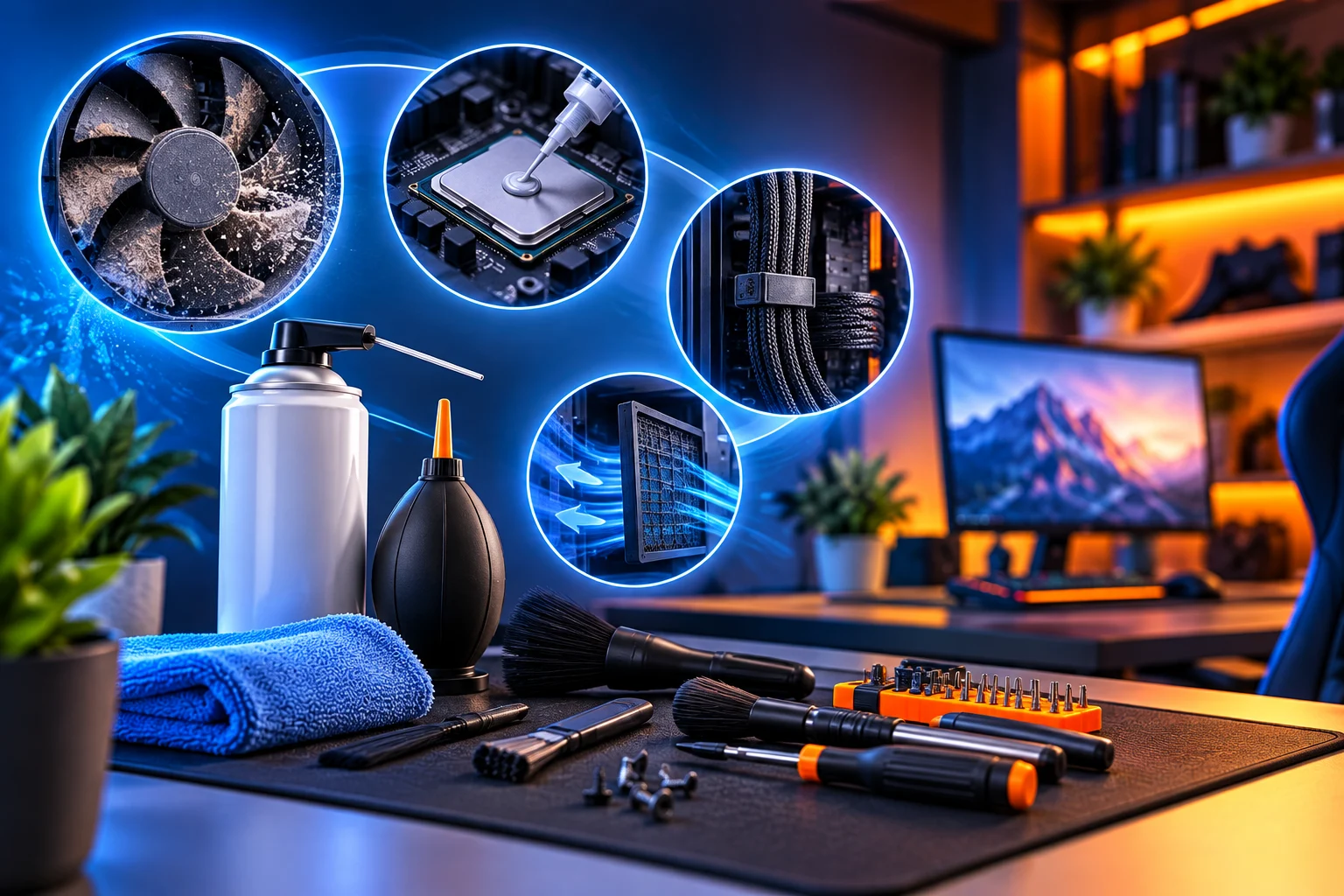
Dust can also collect on CPU heatsinks, GPU fans, case fans, radiator fins, and the bottom of the case.
Every few months, remove accessible dust carefully and keep airflow paths clear.
If temperatures remain high even after cleaning, see How to Reduce Gaming PC Temperature in UAE Weather.
3. Monitor CPU and GPU Temperatures
Check CPU and GPU temperatures during gaming and compare them with guidance for your hardware.
A sudden increase can point to dust buildup, poor airflow, a fan issue, or a cooling problem. Different processors and graphics cards have different normal temperature ranges, so avoid judging every system by one number.
If you are deciding whether the CPU cooler is still suitable, read Air Cooling vs Liquid Cooling for Gaming PCs in the UAE.
4. Keep Enough SSD Space Available
A nearly full system drive can make storage management difficult and leave too little room for game updates, temporary files, recordings, and new installations.
Remove games or large files you no longer use. For most gaming PCs, 1TB is a practical starting capacity.
If you are considering a storage upgrade, read Best SSD for Gaming PC: Does Faster Storage Improve FPS?.
5. Update Drivers and Windows Sensibly
GPU drivers can provide game support, bug fixes, and stability improvements. Windows updates can also include security and compatibility fixes.
Keep both reasonably current, but avoid random “PC optimizer” programs that promise huge FPS gains.
Use official GPU software for driver updates and remove programs you no longer use.
6. Review Startup and Background Apps
A gaming PC may feel slower over time because more applications begin launching automatically.
Review your startup apps every few months. Game launchers, chat programs, cloud utilities, RGB software, and update services can accumulate.
Disable only clearly optional apps you recognize. Do not disable system services you do not understand.
7. Check Fans, Noise, and Airflow
Changes in fan noise can be an early warning sign.
A fan that begins clicking, grinding, stopping, or running much louder than usual deserves attention. Also make sure intake and exhaust vents are not blocked by furniture, walls, or cable bundles.
For many gaming cases, front intake with rear or top exhaust creates a straightforward airflow path.
8. Check Cables During Major Maintenance
During a deeper maintenance session, visually check that important connections remain secure and cables are not touching fan blades.
If the PC has recently been moved and then develops display, storage, or fan problems, checking connections can be useful.
Avoid forcing connectors or changing cables if you are not sure where they belong.
9. Protect the PC From Power Problems
A good power supply is essential, and additional power protection may also be useful depending on your setup.
A surge protector can help protect connected equipment from voltage spikes, while a UPS can provide temporary battery backup during an outage.
10. Review Performance Every Six Months
Every few months, ask whether the PC still performs the way it did when everything was healthy.
Look for lower frame rates, higher temperatures, unusual fan noise, crashes, slower loading, or repeated stuttering.
If the system is clean, temperatures are normal, and storage is healthy but games still struggle, the hardware may be reaching its limits.
Use the Gaming PC Upgrade Guide: Which Parts Should You Upgrade First? to decide whether the GPU, CPU, RAM, storage, or another component deserves priority.
If several expensive parts need replacing at once, compare pre-built gaming PCs from AED 3,000 to AED 6,800 before investing heavily in an older platform.
Final Thoughts
The best gaming PC maintenance routine is consistent rather than complicated.
Keep filters clean, inspect airflow, monitor temperatures, maintain free SSD space, update important software sensibly, remove unnecessary startup apps, and pay attention to new noises or performance changes.
For UAE gamers, dust control and cooling deserve particular attention. Regular maintenance will not magically make old hardware faster, but it can help your PC keep delivering the performance it was designed to provide.
Small issues such as a clogged filter, failing fan, full SSD, or unnecessary background software are much easier to deal with early than after they become bigger problems.
Frequently Asked Questions
How often should I clean my gaming PC?
Check filters every few weeks and consider a deeper internal clean every three to six months, depending on dust levels and usage.
Can dust reduce gaming performance?
Yes. Heavy dust can restrict airflow and raise temperatures, which may reduce performance if the CPU or GPU begins thermal throttling.
How often should I update GPU drivers?
Update when you need game support, bug fixes, security improvements, or a stable newer release.
Should I clean my PC every month?
Light filter and exterior cleaning can be useful monthly in dusty environments. A full internal clean is usually needed less often.
Does cleaning a gaming PC increase FPS?
Not on a healthy system. It can restore lost performance if overheating or restricted airflow was causing throttling.
Should I replace thermal paste every year?
Not automatically. Replace it when servicing the cooler or when there is evidence of a thermal-interface problem.
Is it safe to open a gaming PC for cleaning?
Basic desktop cleaning can be safe if the PC is shut down and you understand the hardware. Never open the power supply itself.
How do I know if a fan is failing?
Clicking, grinding, inconsistent speed, repeated stopping, or rising temperatures can indicate a fan problem.
How much SSD space should I keep free?
Leave enough room for Windows, game updates, temporary files, and new installations instead of keeping the drive completely full.
When should I upgrade instead of maintain?
Upgrade when performance remains inadequate despite clean cooling, healthy storage, stable software, and normal temperatures. If several major parts need replacement, a newer system may offer better value.